
Aurum chapters and the world map
Fill Menu Config > Chapters. An Open Chapter Select entry opens them (World Map on the main menu, hidden by default; Select Chapter in the pause menu’s List layout), and the pause tome’s Map page shows the same map.
| Chapter field | What it does |
|---|---|
| Id | Identifier passed to On Chapter Started, Unlock Chapter and Is Chapter Unlocked. |
| Name | The chapter’s or region’s name. |
| Description | A few lines about it, shown on the world map’s card. |
| Image | Its picture (16:9 looks best): on the map’s card, the Strip still, the journal and, by default, its loading screen. |
| Level | Opened when the chapter is started. |
| Unlocked By Default | Chapters the player can start from the beginning. |
| Map Position | Where its pin sits on the world map, as shares of the map’s width and height (0,0 is the top left). Leave at 0,0 to place the chapters along a winding road across the map. |
| Loading Image | The loading screen’s picture while this chapter’s level loads. Empty uses Image. |
The world map
Section titled “The world map”Chapter Select Layout = Map (the default). The chapter select (AFMChapterSelectScreen) is a parchment world map drawn in code: land and sea with an inked coast, mountains and forests, a compass rose, a cartouche with the World Map Name (empty hides it), the chapters as pins joined by dotted travel paths, and a gold cursor ring that glides to the chosen pin. The chosen region is described on a card with its picture, number, name and description. Give it your own map picture (World Map Image, 1.6 : 1 looks best) to draw the pins over that instead.
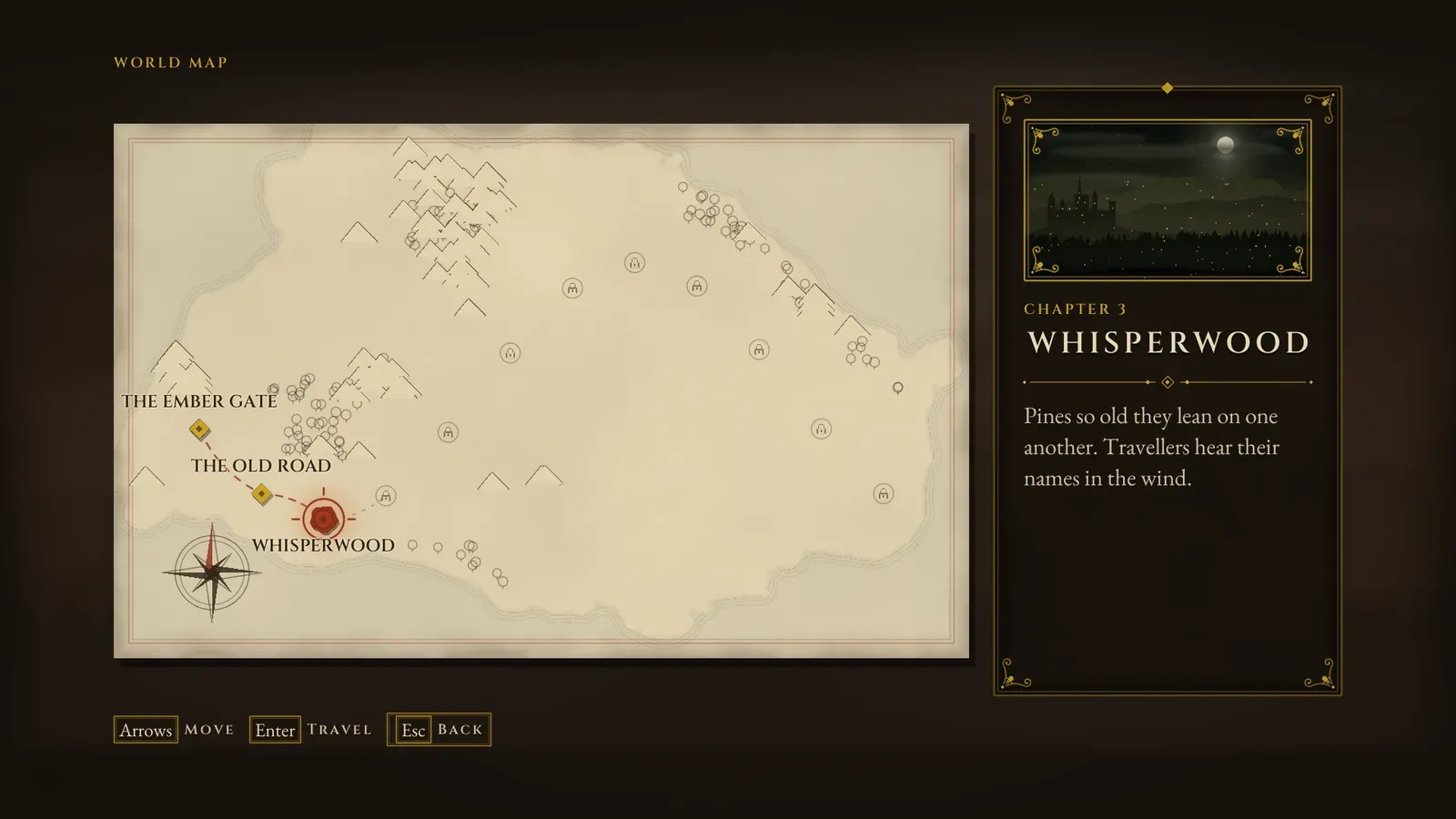
The world map. The ring marks the chosen pin, and the card on the right describes that region.
- The arrows, D-pad or stick jump to the nearest pin in that direction; pointing at a pin picks it; Enter, A or a click on the picked pin travels there.
- Chapters not reached yet show as a faint ring with a padlock. They can be picked but not started (the Locked sound plays), and their name is hidden.
The strip layout
Section titled “The strip layout”Chapter Select Layout = Strip. One chapter at a time: a large still under a strip of diamonds, one per chapter. Left and Right browse; Accept or a click on the still starts it. The theme’s Chapter Still Width, Locked Chapter Dim and Lock Icon style the still.
Unlocking and starting chapters
Section titled “Unlocking and starting chapters”- The screen opens on the chapter it showed last, or on the furthest chapter the player has reached.
- Number Chapters turns the “Chapter 3” line on or off.
- Unlock Chapter (Chapter Id) opens a chapter. Progress is saved at once to the Chapter Progress Slot, and the HUD shows “Chapter Unlocked” (Menu Config > Notify Chapter Unlocks). Is Chapter Unlocked reads it and Reset Chapter Progress locks them again.
- Picking a chapter calls Start Chapter: On Chapter Started fires with its Id (set up checkpoints or loadouts there), then its Level opens and the HUD shows the chapter’s title card (Menu Config > Show Chapter Title On Start).