Aurum HUD
The Assetpro HUD (AFMHUDSubsystem, one per local player) draws the HUD in the theme’s look, under the menus. Blueprint: Get Assetpro HUD. C++: LocalPlayer->GetSubsystem<UAFMHUDSubsystem>().
What it draws
Section titled “What it draws”| Node | What it shows |
|---|---|
| Show Interaction Prompt, Hide Interaction Prompt | A small plaque with the key and an action (“E Open”), with an optional line over it naming the thing (“Portcullis”). With a Target actor the plaque sits beside it, joined by a leader line to a marker on it, and hides while the target is off screen; without one it sits in the lower middle. The key follows the input in use and, given an Input Action, the key that action is bound to now. One prompt at a time. |
| Set Interaction Progress | Fills the prompt’s hold bar, for prompts with Hold. |
| Show Subtitle, Clear Subtitles | A line at the bottom: the speaker in gold small capitals, then the line. Duration 0 picks one from the line’s length. Follows the Subtitles, Subtitle Size and Subtitle Background settings. At most Max Subtitle Lines show. |
| Show Notification | A notification on a stone plate in the top right corner: an icon, a title and a detail line. At most Max Notifications show; the oldest leave early. |
| Show Checkpoint Notification | “Checkpoint / Progress saved”, translated, with the saving indicator. |
| Show Banner | A ribbon unrolls across the upper middle with a line in small capitals over the title. |
| Show Boss Bar, Update Boss Bar, Hide Boss Bar | The boss health bar. |
| Set Player Health, Set Player Stamina, Set Player Vitals Shown | The player’s bars. |
| Set Compass Shown, Add Compass Marker, Remove Compass Marker, Clear Compass Markers | The compass. |
| Show Chapter Title | A chapter’s number and name over a rule in the lower middle. Starting a chapter does this for you once its level has loaded. |
| Show Saving Indicator, Hide Saving Indicator | “Saving” and a ring of small diamonds in the bottom right corner, for at least Minimum Seconds, or until Hide with Until Hidden. |
| Set HUD Hidden | Hides the whole HUD, for cutscenes and photo mode. |
| Is Interaction Prompt Shown, Is Chapter Title Active, Is Boss Bar Shown, Get Boss Health, Is Player Vitals Shown, Get Player Health, Get Player Stamina, Is Compass Shown, Get Compass Markers, Is HUD Hidden, Get HUD Layer | State, and the layer widget itself. |
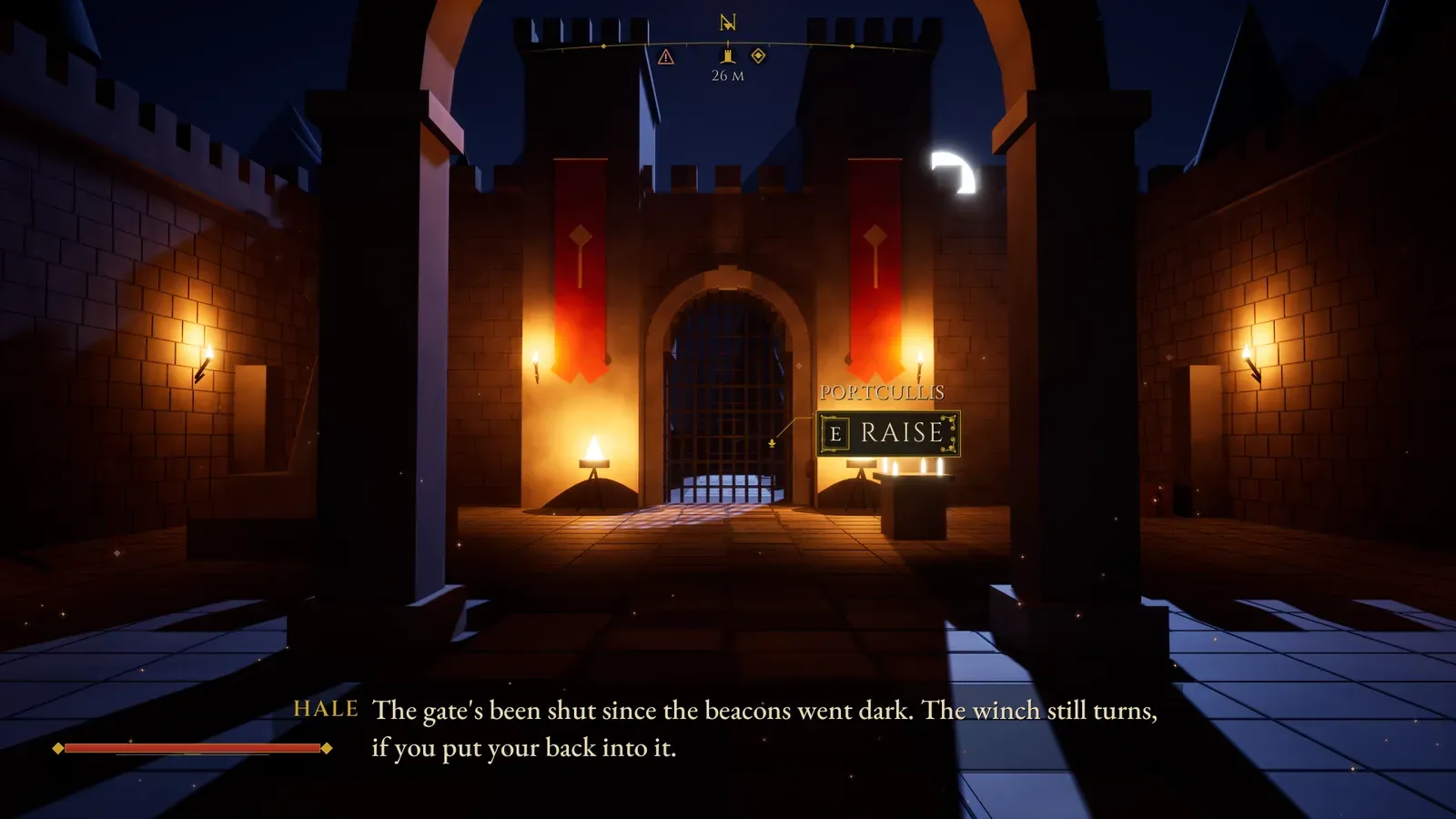
An interaction prompt beside its target, a subtitle and the compass.
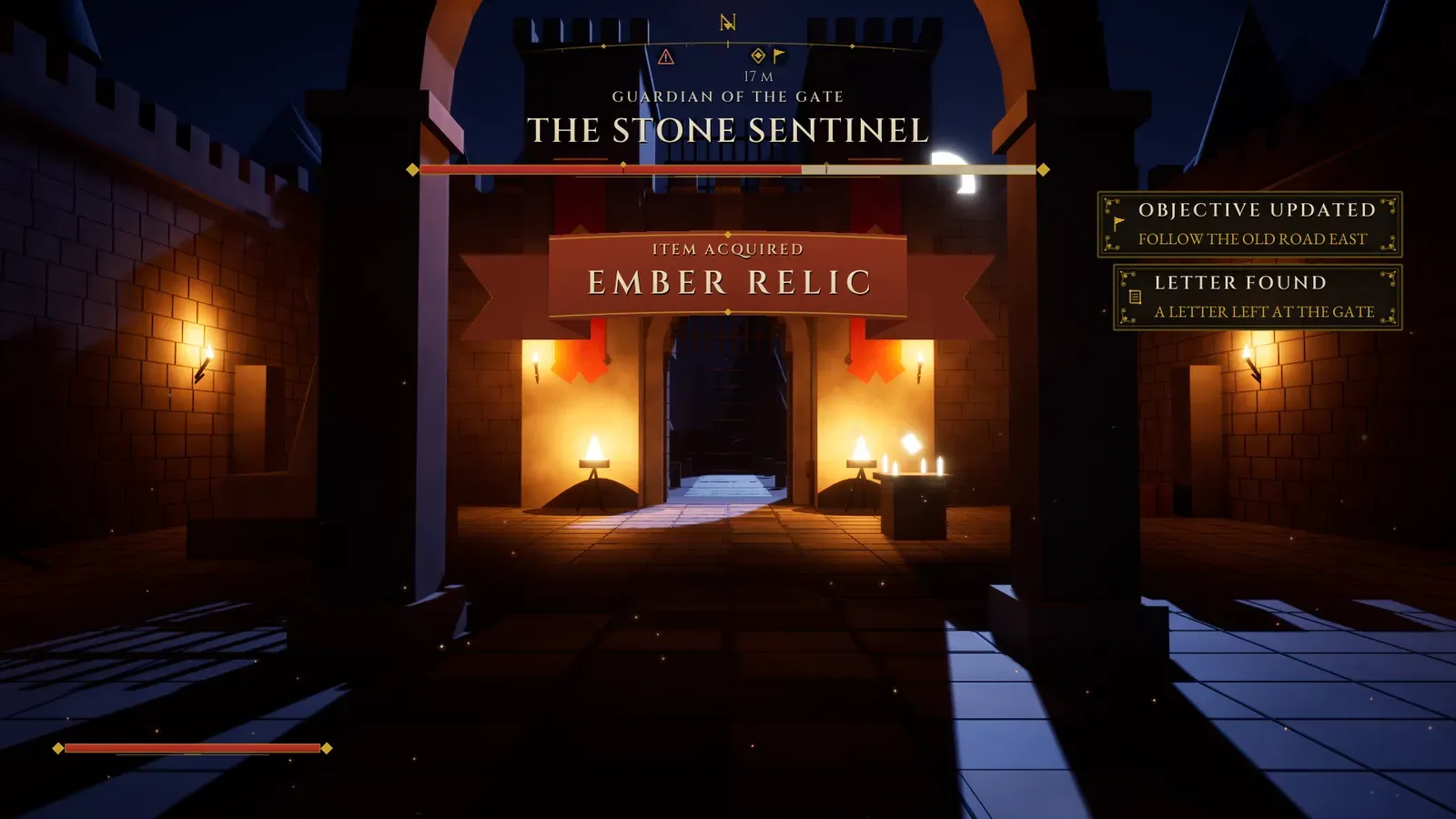
A boss bar, an Item Acquired banner and two notifications, each keeping out of the others’ way.
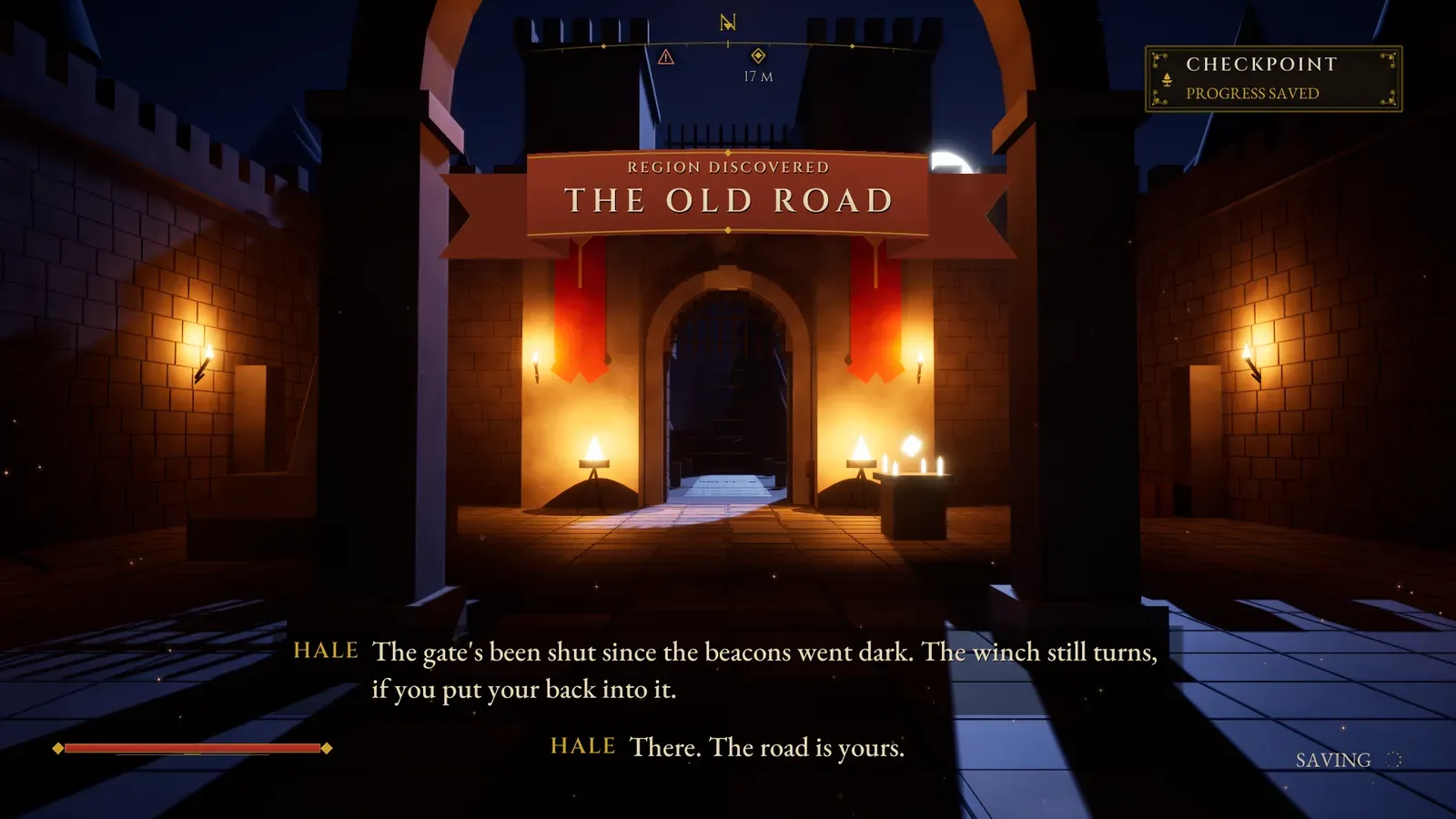
A Region Discovered banner with a checkpoint notification and the saving indicator.
Notification icons
Section titled “Notification icons”Drawn in code, in the theme’s colours, and used by compass markers too: Checkpoint (a brazier flame), Unlock (a key), Save (a wax seal), Alert, Info, Signal (a pennant), Coin, Relic (a gem), Region (a small tower) and Scroll.
Banners
Section titled “Banners”Show Banner (Kind, Title, Kicker, Duration). Kind sets the line over the title and the time on screen: Region Discovered (“Region Discovered”, 4.6 s), Quest Started (“New Quest”), Quest Updated, Quest Completed (“Quest Complete”), Item Acquired (3 s) or Custom (your Kicker). Duration 0 uses the kind’s own. The ribbon unrolls, its words ink in, it holds, then it fades. Banners wait their turn.
Boss bar
Section titled “Boss bar”Show Boss Bar (Name, Health, Phase Thresholds, Title) shows a long gilded red bar with diamond ends across the top: an optional title in small capitals (“Warden of the Ash Gate”), the name, and the health (0 to 1). Phase Thresholds, such as 0.66 and 0.33, are marked with small diamonds, and crossing one makes the name catch the light. Update Boss Bar (Health): damage lands at once and leaves a pale trail that catches up after a moment, and healing fills gently.
Player health and stamina
Section titled “Player health and stamina”A health bar and a slimmer stamina bar in the lower left, in the boss bar’s style. Set Player Health (0 to 1): a loss leaves the same pale trail. Set Player Stamina (0 to 1): the stamina bar fades away while full and returns when spent.
Compass
Section titled “Compass”An arc across the top middle that turns with the view, with the cardinal points, a tick every fifteen degrees and your markers.
Add Compass Marker takes a marker: Id (adding the same Id moves it), Target (an actor to follow) or Location, Icon, Color (transparent uses the theme’s gold) and Show Distance (metres under the marker). Markers behind the player wait at the ends of the arc.
How the pieces behave
Section titled “How the pieces behave”- The boss bar sits under the compass when it shows. Notifications move below the boss bar while it shows, and a banner drops under it, so nothing overlaps.
- The HUD hides while any menu is open, and its timers wait until the menu closes.
- Everything follows HUD Opacity and HUD Safe Zone, and Reduce Effects turns off unrolling banners and inked-in text. All three are in Settings.
- All of the plugin’s HUD text is translated. Your own lines, such as subtitles, titles and names, are your game’s FText.
Menu Config HUD options
Section titled “Menu Config HUD options”| Option | What it does |
|---|---|
| Show Player Vitals | Draws the health and stamina bars. Untick to leave both out, or call Set Player Vitals Shown in play. |
| Hide Full Stamina | Fades the stamina bar away while it is full. |
| Show Compass | Shows the compass from the start. Set Compass Shown does it in play. |
| Compass North Yaw | Which way is north. 0 is the world’s +X. |
| Compass Field Of View | How much of the horizon the arc spans, 160 degrees by default. |
| Max Notifications | How many notifications show at once, 3 by default. Past that, the oldest leave early. |
| Max Subtitle Lines | How many subtitle lines show at once, 2 by default. |
| Widget Classes > HUD Layer Class | A Blueprint child of the HUD layer to use instead of the generated one. |
Drop-in volumes
Section titled “Drop-in volumes”Three actors use the HUD with no Blueprint at all. Find them in Place Actors by searching for “AFM”.
| Actor | What it does |
|---|---|
| AFMInteractionVolume | Shows its prompt (Action Text, Subject Text, Prompt Offset) while the player’s pawn is inside the box, and fires On Interacted when the player presses the key: the Action (an Input Action) if set, else Keyboard Key (E) or Gamepad Key (X / Square). Only Once removes the prompt after the first use. Set Interaction Enabled turns it off and on. |
| AFMSubtitleTrigger | Plays its Lines (speaker, line, duration) one after the other when the player first enters, or every time with Repeat. Play Lines plays them from code. |
| AFMCheckpointVolume | Shows “Checkpoint / Progress saved”, or your own Title, Detail and Icon, with the saving indicator when the player first enters, autosaves (Autosave), and fires On Reached. |
Held interactions
Section titled “Held interactions”The Held Interactions setting (Hold or Toggle) is for your interaction code: read Is Interact Toggle on the Assetpro Settings Subsystem. With Toggle, one press starts a held interaction and it carries on by itself until it is done or pressed again.
Your own HUD layout
Section titled “Your own HUD layout”The layer is AFMHUDLayer, built in code from the theme. Select a Blueprint child in Menu Config > Widget Classes > HUD Layer Class to change it.
A child with its own designer layout keeps the behaviour when it names its widgets PromptBox, PromptMarker, PromptSubject, PromptFrame, PromptKeyCap, PromptKeyText, PromptAction, PromptHoldBar, SubtitleBox, NotificationBox, ChapterCard, ChapterNumber, ChapterName, SavingBox, SavingText, BossBox, BossTitle, BossName, BossGauge, VitalsBox, HealthGauge, StaminaGauge, Compass, BannerBox, BannerRibbon, BannerKicker and BannerTitle. All of them are optional, and lines and notifications are created into the boxes.
Distances from the screen edges, the subtitle font and width and the notification width are in the theme’s HUD group. Notification Width is the smallest width: a longer title, or a longer translation, widens a notification up to 1.5 times that.
The death screen
Section titled “The death screen”Show Death Screen fades in over the game (Menu Config Death Fade Time, 1.6 s): the Death Title (“Fallen”), the Death Subtitle under it (“The tale is not over yet.”) and the Death Menu Entries: Retry, which restarts the level, Load Last Save and Main Menu, which asks first.
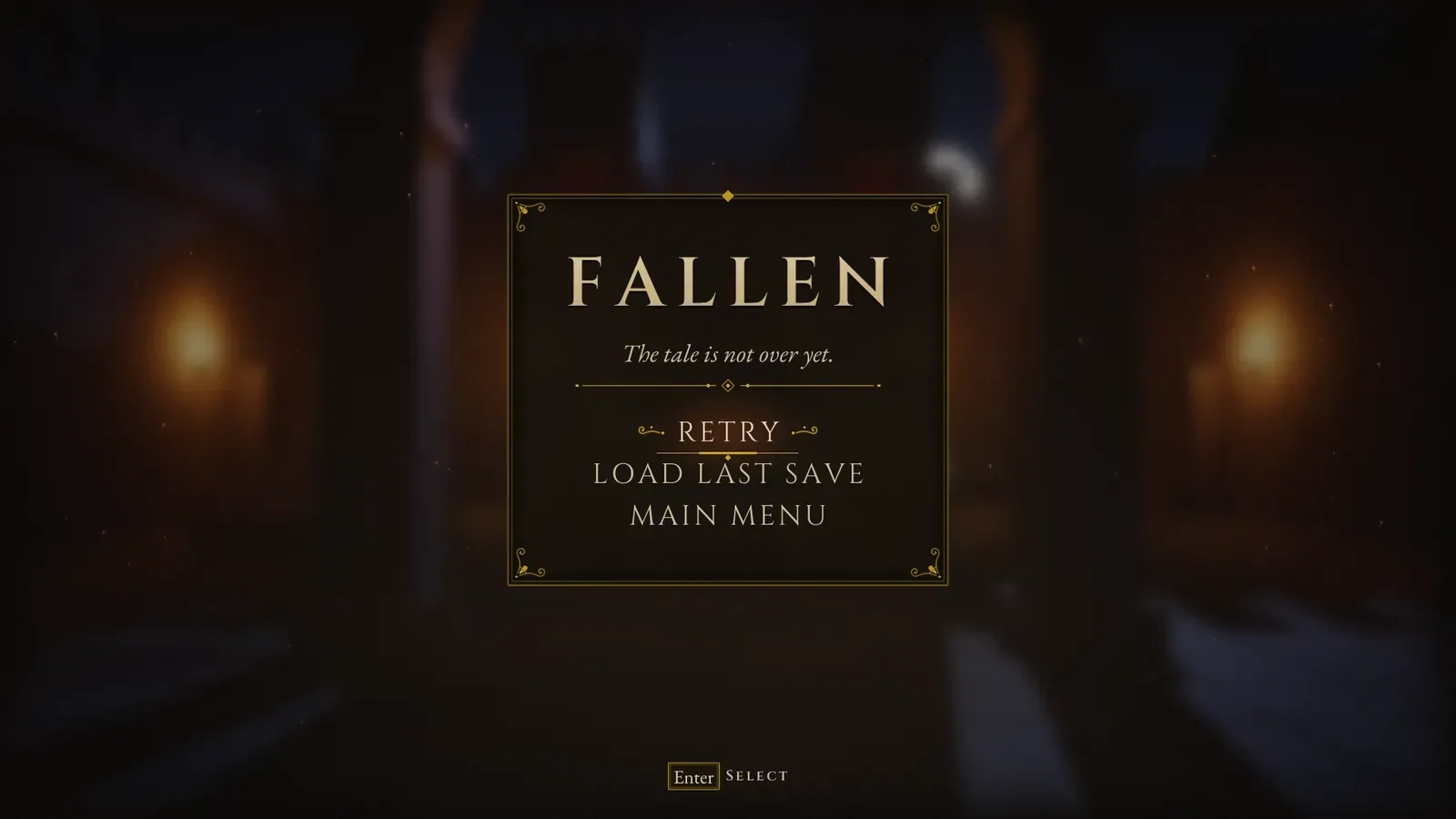
The death screen, with the default title, subtitle and entries.
- Whatever menu was open gives way. Back does nothing there, and the pause menu stays shut while it is open.
- Retry uses the Restart Level action. For checkpoints of your own, bind On Menu Action to the
RetryId, or change its Action to Custom, put the player back yourself, then call Hide Death Screen. - Is Death Screen Open tells your game whether it shows.