
Aurum quick start
Requirements
Section titled “Requirements”| Engine | Unreal Engine 5.4, 5.5, 5.6, 5.7, 5.8 |
| Platforms | Windows (Win64), Mac, Linux |
| Engine plugins | CommonUI and Enhanced Input, enabled automatically with this plugin |
| Modules | 1 runtime module, AssetproFantasyMenu, full C++ source |
| Content | The Cinzel and EB Garamond fonts with their licences (Content/Fonts), the padlock (Content/Icons), seven interface sounds (Content/Sounds), the translations (Content/Localization) and a ready-to-play example (Content/Examples: two maps, a game mode, a Menu Config, three chapter stills and three materials). Every screen, frame, icon, the crest, the world map, the open book and the whole castle vista are generated in C++. |
Try the example first
Section titled “Try the example first”With the plugin enabled (step 1 of Set up your own), a small working game is in Content/Examples. Find it through Content Browser > Settings > Show Plugin Content, then AssetproFantasyMenu Content > Examples.
-
Project Settings > Plugins > Assetpro Fantasy Menu > Menu Config =
DA_AFM_ExampleMenuConfig. -
Open
L_AFM_Example_MainMenuand press Play.
The example Menu Config sets the Main Menu Level and the New Game Level, and has three chapters (The Old Road, The Gatehouse and The Courtyard) with their stills. New Game runs the whole new game flow, then opens L_AFM_Example_Gameplay, a torch-lit castle lane (move with WASD and the mouse).
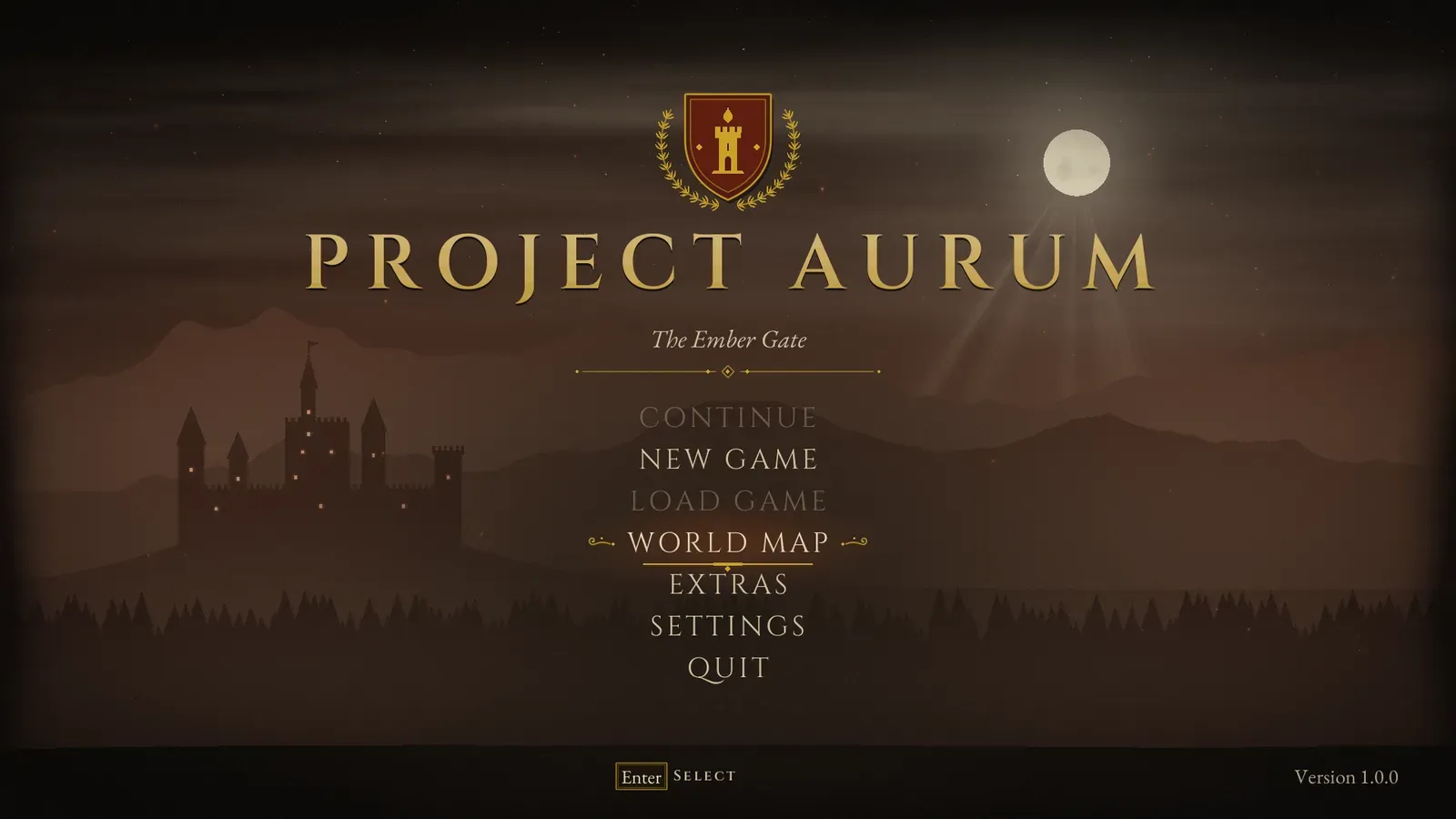
The main menu over the castle vista. Continue and Load Game stay greyed out until there is a save.
The gameplay level shows the HUD with no Blueprint: a subtitle trigger at the start, a checkpoint volume that autosaves, and an interaction volume with an “[E] Open” prompt on the old door. Its game mode, BP_AFM_ExampleGameMode, uses AFMPlayerController, so gamepad Start (or Escape in a Standalone Game) opens the pause menu, and F5 and F9 quick save and quick load.
Without the first step the main menu still appears, but New Game and the chapters have no level to open. The example is not packaged into your game unless your project uses it, and you can delete the Examples folder once your own Menu Config is set up.
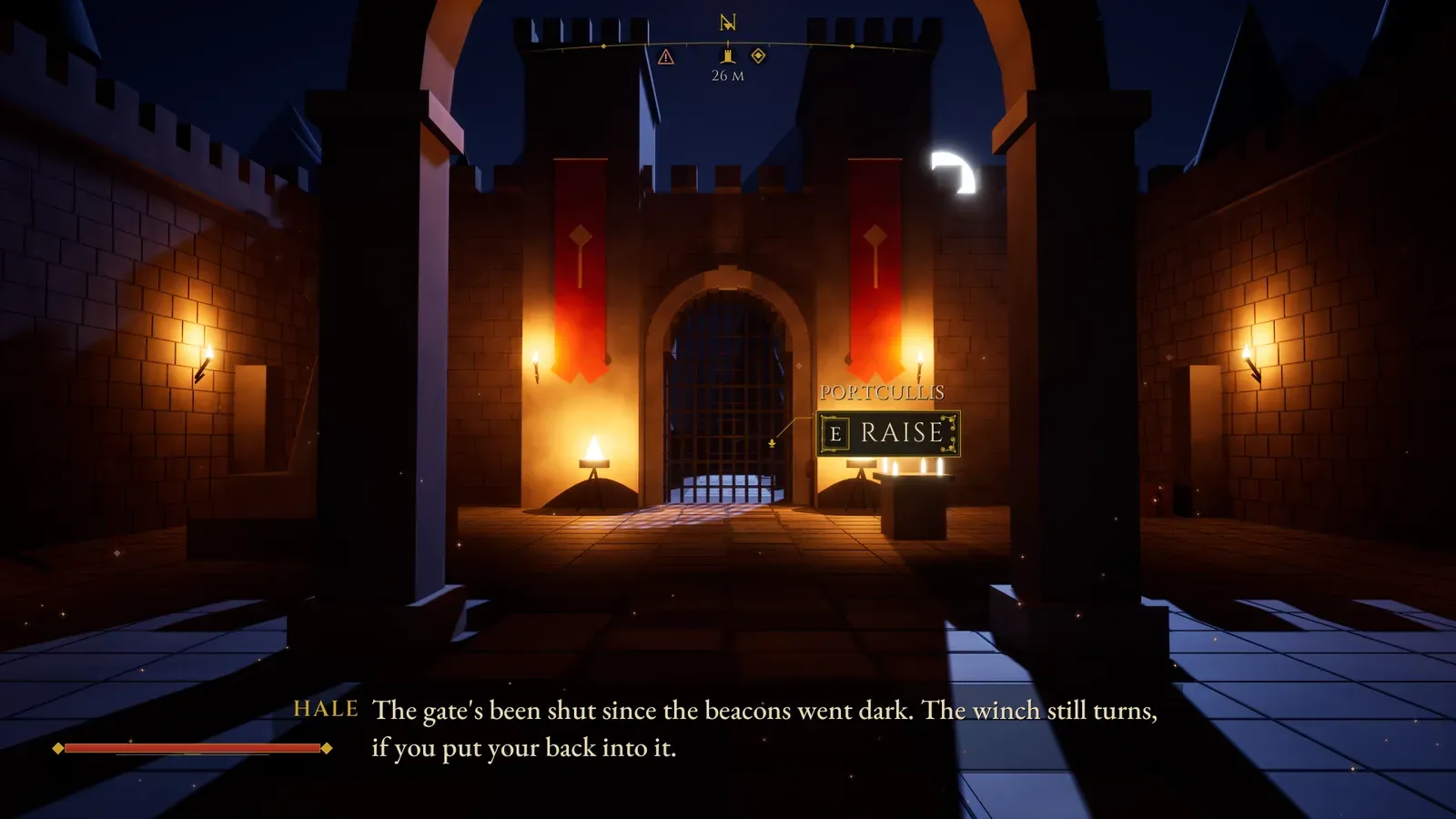
Interaction prompts and subtitles come from drop-in volumes, so a level can show the HUD without any Blueprint.
Set up your own
Section titled “Set up your own”-
Enable Assetpro Fantasy Menu in Edit > Plugins and restart the editor. CommonUI and Enhanced Input are enabled with it.
-
Recommended: Project Settings > Engine > General Settings > Game Viewport Client Class =
CommonGameViewportClient. -
Main menu level: World Settings > GameMode Override =
AFMMainMenuGameMode. The player gets no pawn, and the startup menu (first-run pages, then the press start screen or the main menu) appears by itself. -
Gameplay levels: use
AFMPlayerController, so Escape or gamepad Start opens the pause menu and F5 and F9 quick save and quick load, or call Toggle Pause Menu on the Assetpro Menu Subsystem from your own pause input. -
Create a Menu Config data asset (Content Browser > Miscellaneous > Data Asset >
AFMMenuConfig). Set Main Menu Level and New Game Level, fill in your Chapters, then assign the asset in Project Settings > Plugins > Assetpro Fantasy Menu. -
Optional: create a Theme data asset (
AFMTheme), pick a preset, press Apply Selected Preset, and assign it on the same Project Settings page. -
HUD: call Get Assetpro HUD from any Blueprint and use its nodes (Show Interaction Prompt, Show Banner, Show Boss Bar, Set Player Health and the rest), or drop the HUD volumes into your level. See HUD.
Press Play in your main menu level. Everything else (entries, chapters, classes, difficulties, the codex, extras, credits, tips, colours, fonts and the vista) is edited in those two assets: see Configuration.