
Aurum menu entries and actions
The main menu, the settings menu, the extras, the death screen, the pause menu in its List layout and the tabs of the pause tome are all lists of menu entries, edited in the Menu Config.
The main menu
Section titled “The main menu”The main menu (AFMMainMenuScreen) lists the Menu Config’s Main Menu Entries under the game title, over the castle vista. The focused entry is underlined in gold drawn out from its centre, with a small scroll either side and a soft warm light behind; the others are dimmed.
- Up and Down (D-pad, left stick) move, Enter or A selects, and the mouse lights the entry it points at. Disabled and hidden entries are skipped.
- A heraldic crest drawn in code, a shield with a tower under a flame and laurel sprigs, sits above the Game Title, with the Game Subtitle under it and a diamond divider. The title inks itself in when the menu opens and catches a slow sweep of light now and then (theme: Title Gleam Interval). The version shows in the footer.
- With a Game Logo set, the logo takes the place of both the crest and the title.
- The theme’s Main Menu Alignment puts the menu in the centre (the default), on the left or on the right, and the Menu Scrim shades the scene behind it so the text stays readable.
- Main Menu Background Image replaces the painted scene with your own key art. To show your menu level, a 3D scene, behind the main menu instead, lower the theme’s Main Menu Background Opacity.
- Back (Escape or B) runs the Quit entry, which asks first, when Back On Main Menu Offers Quit is on.
- Show Press Start Screen adds a title screen with the title (or logo) and “Press any key to start” before the menu.
The defaults are Continue, New Game, Load Game, World Map (hidden), Extras, Settings and Quit. Continue and Load Game stay disabled until there is a save. World Map opens the chapter select and is in the list but not visible: tick its Visible to offer it from the main menu.
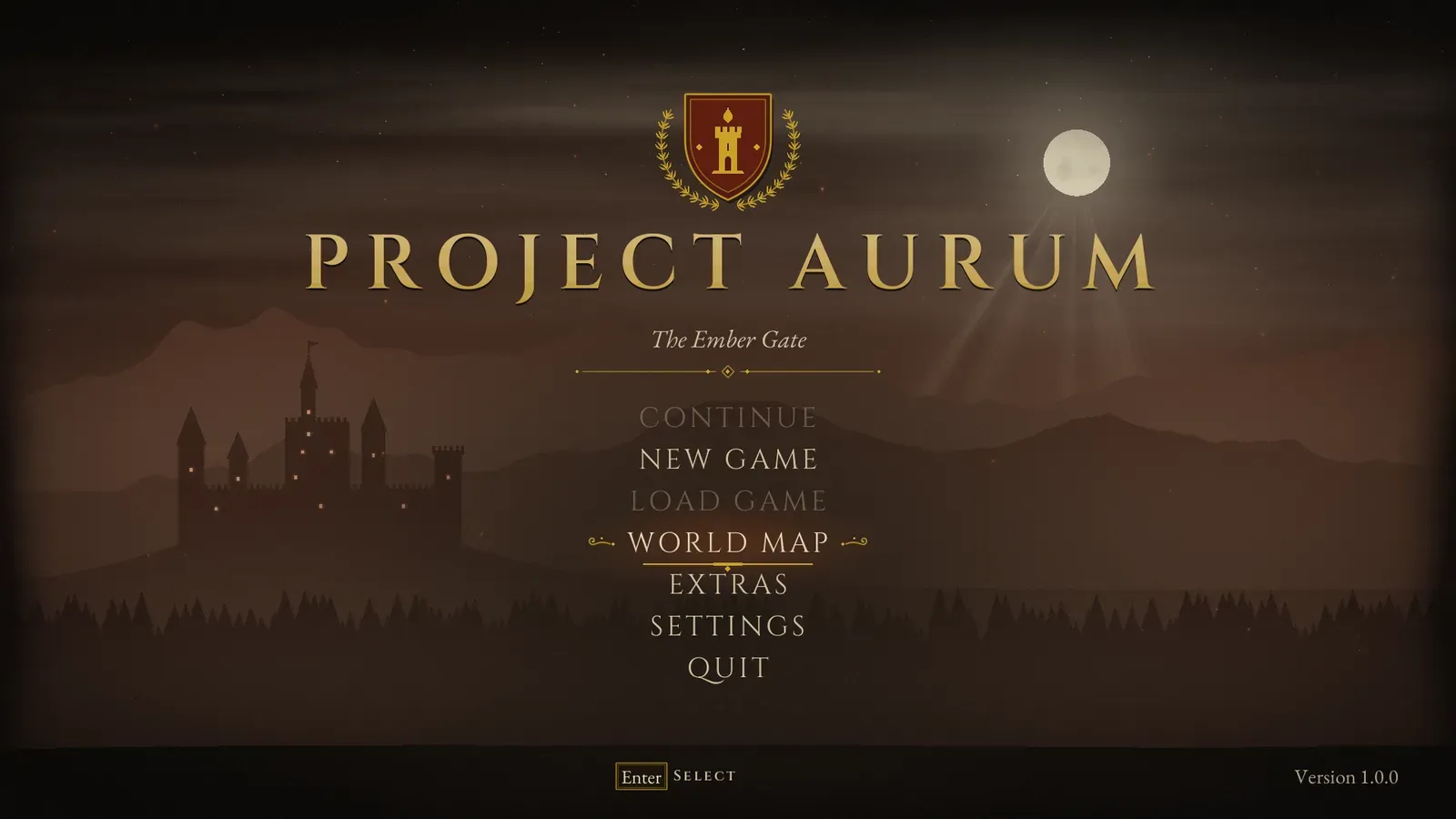
The default entries, with World Map made visible. The focused entry is underlined in gold, and entries with no save are dimmed.
What an entry holds
Section titled “What an entry holds”| Entry field | What it does |
|---|---|
| Id | Identifier passed to On Menu Action. |
| Label | The entry’s text. |
| Description | A line or two about the entry, shown where there is room, such as the pause tome’s right page. |
| Action | What the entry does, from the table below. |
| Level | For Open Level: the level to open. |
| Screen Class | For Open Screen: the widget pushed onto the menu layer. |
| Settings Categories | For Open Settings Page: the categories the page shows, in order. Empty shows every category. |
| Style | Primary (a menu entry in large capitals), Secondary (a smaller button) or Danger (turns the theme’s danger colour when focused). |
| Requires Confirmation, Confirm Title, Confirm Message | Ask “are you sure?” before running the action. |
| Visible | Hide the entry without removing it. |
| Required Save Slot | Show the entry disabled until this save slot (user index 0) has a save, for games that keep their own saves. |
The actions
Section titled “The actions”| Action | Result |
|---|---|
| Start Game | Runs the new game flow (character creation, difficulty, intro card), then opens the New Game Level. |
| Open Level | Opens the entry’s Level. |
| Open Settings | Opens the settings menu. |
| Open Settings Page | Opens one settings page with the entry’s Settings Categories. |
| Open Chapter Select | Opens the chapter select and world map, disabled while there are no chapters. |
| Open Controller Layout | Opens the gamepad diagram. |
| Open Credits | Opens the credits scroll. |
| Open Screen | Pushes the entry’s Screen Class onto the menu layer. |
| Resume, Restart Level, Return To Main Menu | Pause menu actions. |
| Quit Game | Quits the game. |
| Continue Game | Loads the newest save, disabled while there is none. |
| Open Load Game, Open Save Game | Opens the slot screens. Load is disabled without saves, Save while saving is not allowed. |
| Quick Save, Quick Load | Saves to or loads the quick save slot. |
| Open Codex | Opens the codex, disabled with Enable Codex off. |
| Open Extras, Open Gallery, Open Jukebox | Opens the extras, the gallery or the music room, disabled with Enable Extras off or when that room is empty. |
| Open Photo Mode | Enters photo mode, in game, with a player pawn and Enable Photo Mode on. |
| Custom | Does nothing by itself. On Menu Action fires with the Id so your code can react. |
- Every entry, whatever its action, also fires On Menu Action with its Id after it runs.
- Any action works in any list: an extras entry can open a settings page, and a main menu entry can open the codex.
- Set Menu Entry Enabled (Entry Id, Enabled) turns an entry on or off from code, and Clear Menu Entry Enabled hands it back to the rules above.
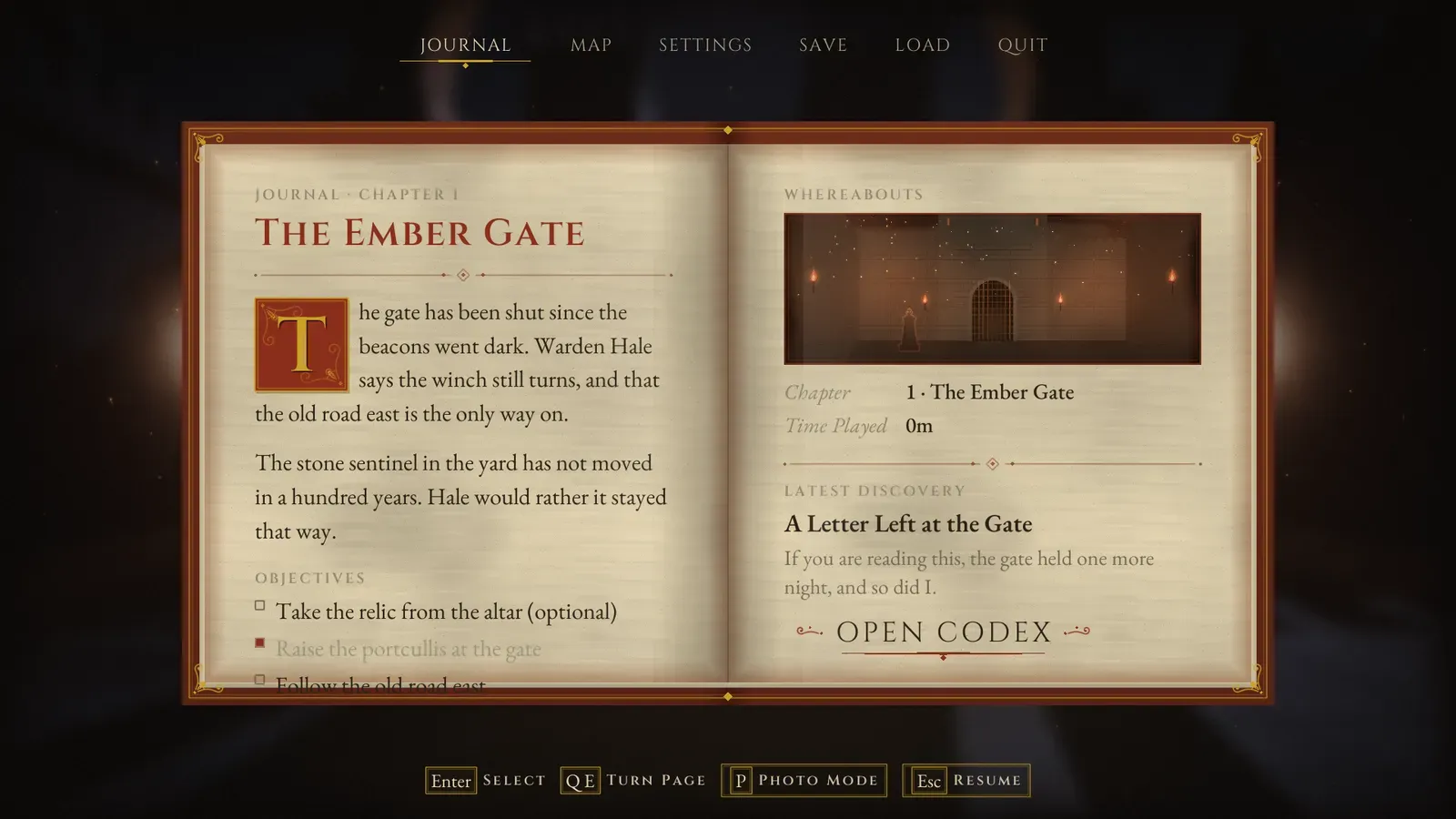
The tabs of the pause tome are menu entries too, so the same actions are available there. See Pause menu.