Horizon settings
Video settings go through UGameUserSettings. Everything else is stored in AMSUserSettings. Both are saved to GameUserSettings.ini and restored on the next launch.
What is included
Section titled “What is included”| Tab | Setting | Id | Values (default) |
|---|---|---|---|
| Video | Window Mode | WindowMode |
Fullscreen, Windowed Fullscreen, Windowed (Windowed Fullscreen) |
| Video | Resolution | Resolution |
Supported resolutions. Shows the desktop resolution, locked, in Windowed Fullscreen |
| Video | Vertical Sync | VSync |
Off / On (Off) |
| Video | Frame Rate Limit | FrameRateLimit |
30, 60, 90, 120, 144, 165, 240, Unlimited (Unlimited) |
| Video | Render Resolution | ResolutionScale |
Auto, 50% to Native (100%) |
| Video | Brightness | Brightness |
0 to 100% (50%) |
| Graphics | Quality Preset | QualityPreset |
Low, Medium, High, Epic, Cinematic. Shows Custom when the groups differ |
| Graphics | Auto-Detect Settings | AutoDetect |
Runs the engine hardware benchmark and applies the result |
| Graphics | View Distance, Anti-Aliasing Quality, Shadows, Global Illumination, Reflections, Post Processing, Textures, Effects, Foliage, Shading | ViewDistance, AntiAliasingQuality, Shadows, GlobalIllumination, Reflections, PostProcessing, Textures, Effects, Foliage, Shading |
Low to Cinematic (Epic) |
| Graphics | Anti-Aliasing Method | AntiAliasingMethod |
Off, FXAA, TAA, TSR (TSR) |
| Graphics | Motion Blur | MotionBlur |
Off / On (On) |
| Audio | Master Volume | MasterVolume |
0 to 100% (100%) |
| Audio | Music, Sound Effects, Dialogue, Interface | MusicVolume, EffectsVolume, VoiceVolume, InterfaceVolume |
0 to 100% (Music 80%, others 100%) |
| Audio | Mute in Background | MuteWhenUnfocused |
Off / On (Off) |
| Controls | Mouse Sensitivity | MouseSensitivity |
0.1 to 5.0 (1.0) |
| Controls | Invert Mouse Y | InvertMouseY |
Off / On (Off) |
| Controls | Stick Sensitivity | GamepadSensitivity |
0.1 to 5.0 (1.0) |
| Controls | Invert Stick Y | InvertGamepadY |
Off / On (Off) |
| Controls | Vibration | Vibration |
Off / On (On) |
| Controls | Key Bindings, Gamepad Bindings | KeyBindings, GamepadBindings |
The rebinding sections. See Key rebinding |
| Controls | Reset Key Bindings | ResetKeyBindings |
Restores every binding to its default |
| Gameplay | Field of View | FieldOfView |
60 to 120 degrees (90) |
| Gameplay | Camera Shake | CameraShake |
0 to 100% (100%) |
| Gameplay | Difficulty | Difficulty |
Easy, Normal, Hard (Normal) |
| Gameplay | Language | Language |
Shown when two or more languages are available |
| Accessibility | Subtitles | Subtitles |
Off / On (On) |
| Accessibility | Colour Blind Mode | ColorBlindMode |
Off, Protanopia, Deuteranopia, Tritanopia (Off) |
| Accessibility | Colour Correction Strength | ColorBlindStrength |
0 to 100% (100%) |
| Accessibility | Interface Scale | UIScale |
75% to 150% (100%) |
Run AMS.ListSettings in the console to print every Id.
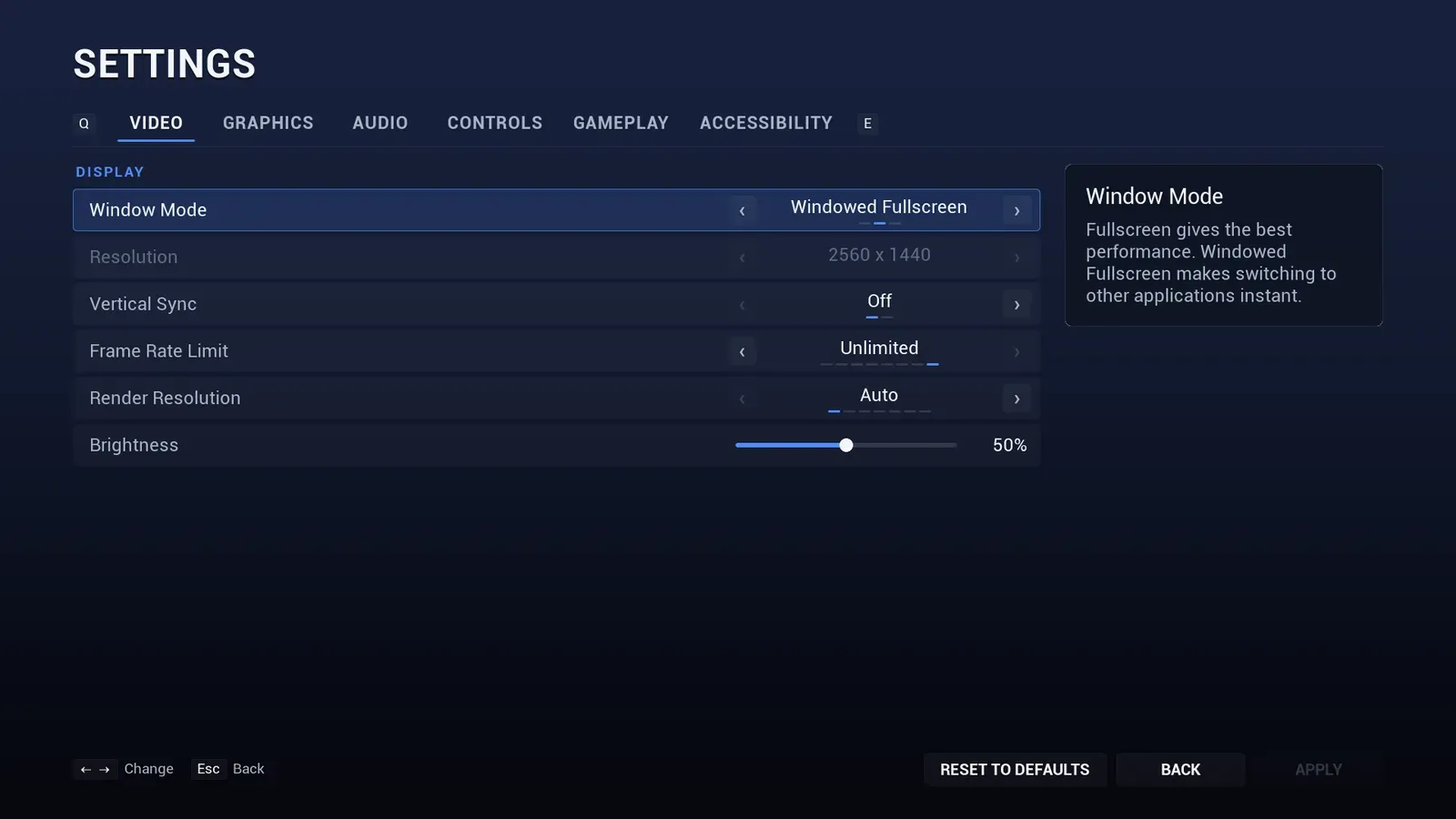
The Video tab. The panel on the right describes the focused setting.
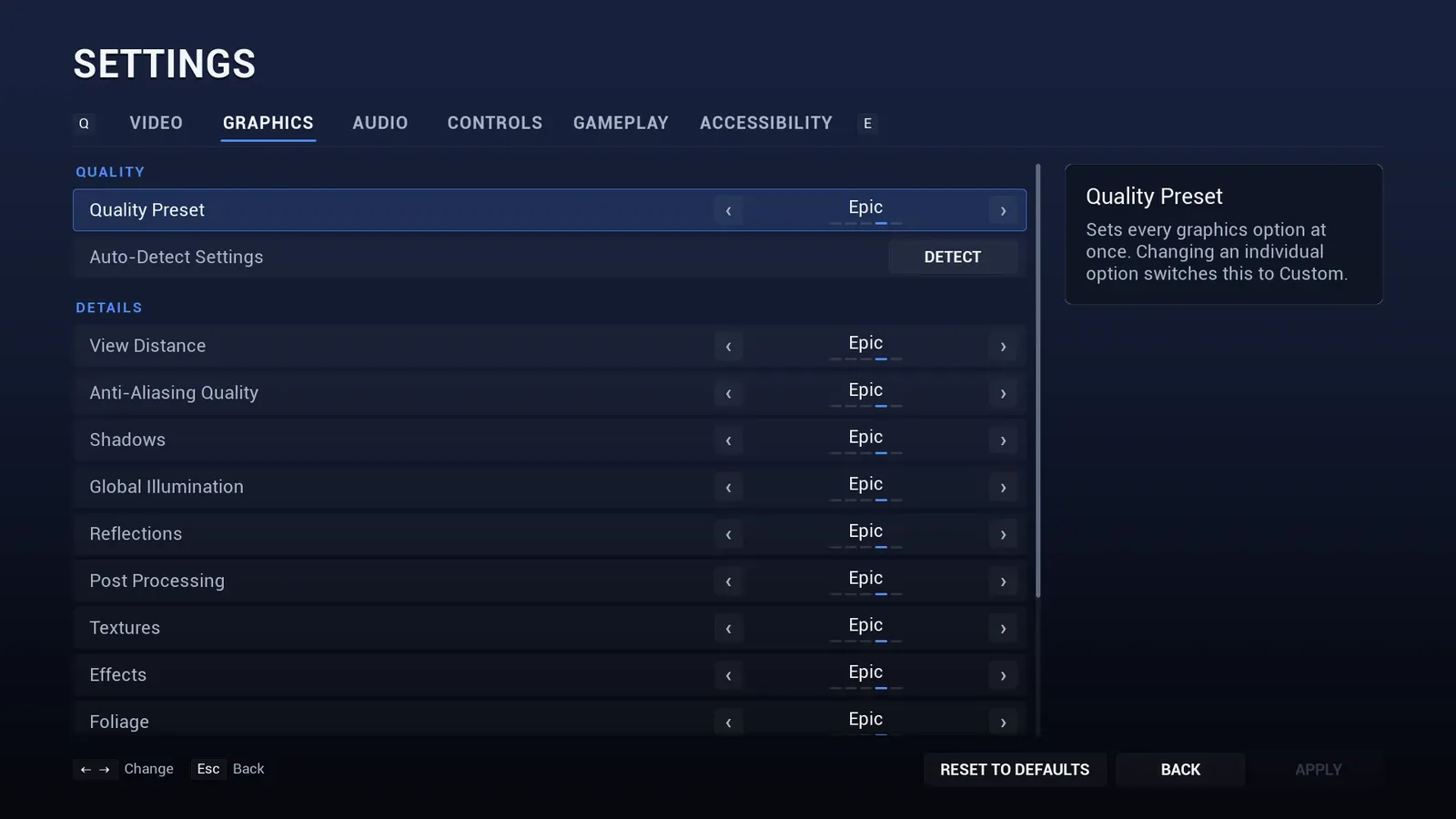
The Graphics tab, with every scalability group.
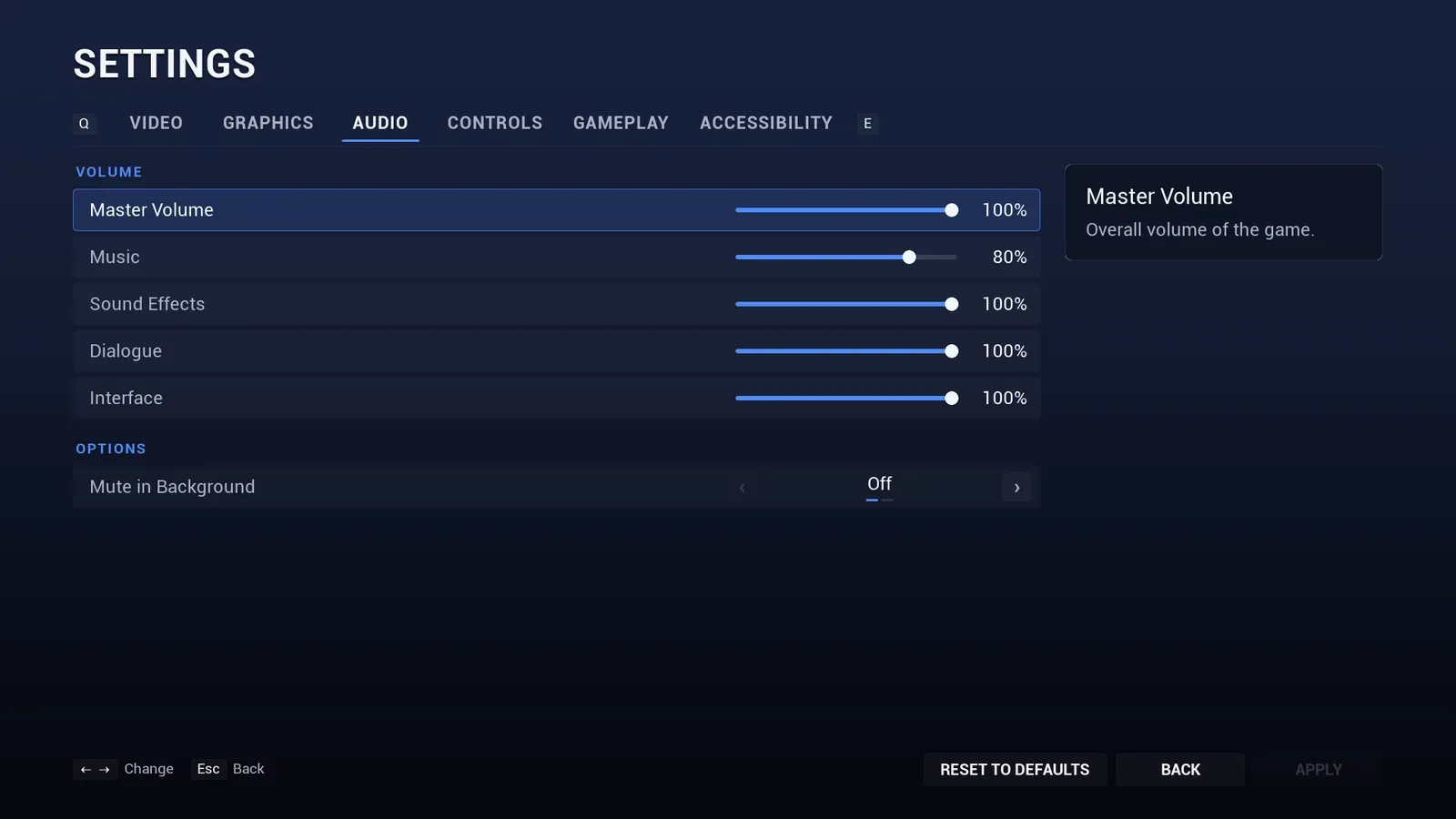
The Audio tab.
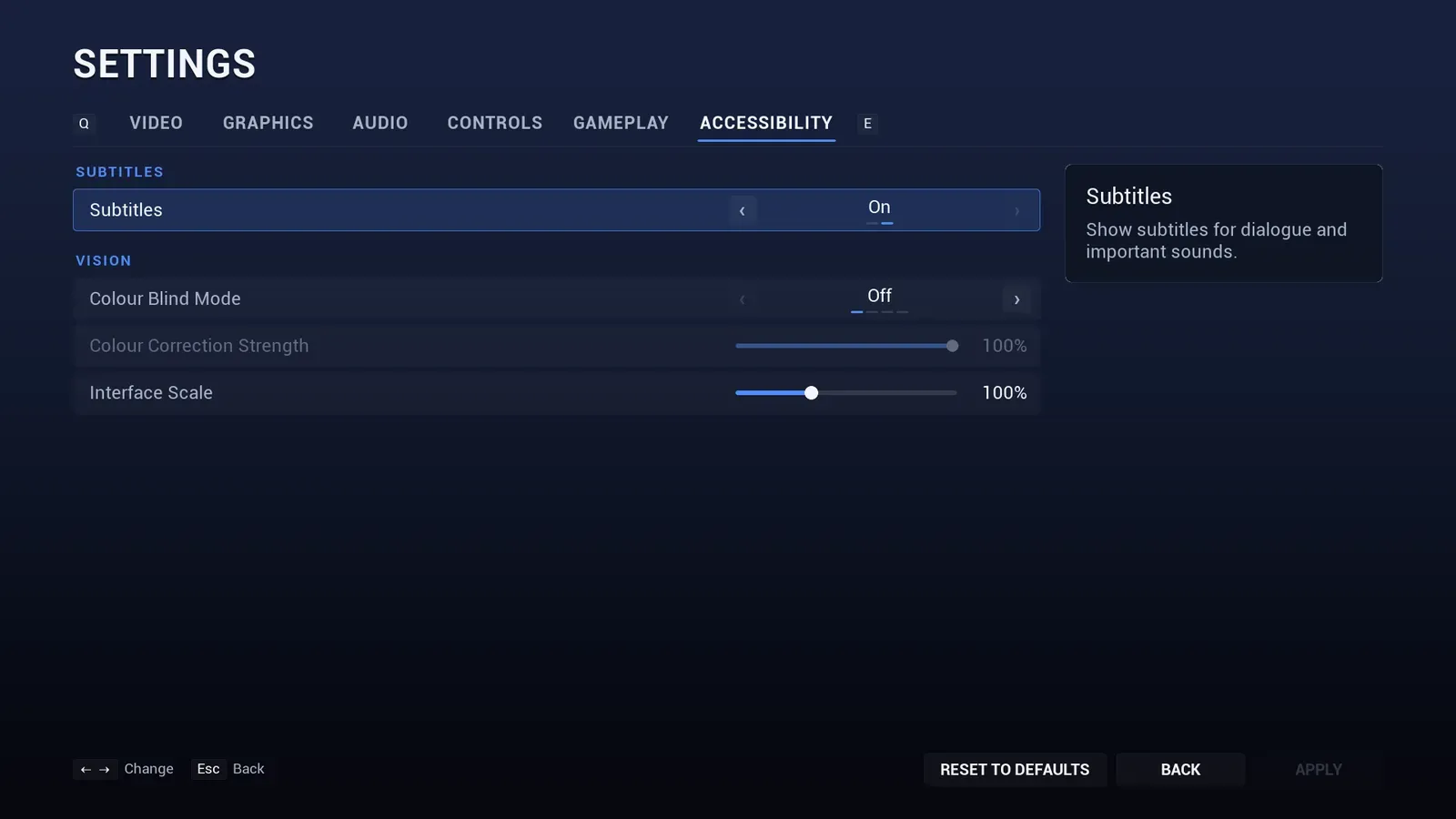
The Accessibility tab.
How changes are applied
Section titled “How changes are applied”- Window mode, resolution, vertical sync, frame rate limit, render resolution and the quality settings take effect with Apply (gamepad Y). Everything else (brightness, anti-aliasing method, motion blur, audio, controls, gameplay and accessibility) takes effect as the player changes it, so it can be tried out, and is saved with Apply.
- Changing the resolution or window mode asks “Keep display settings?” and reverts by itself after 15 seconds.
- The Video page always shows the window the game really has, also when it was started with
-windowed,-ResXor-ResY, or switched with Alt+Enter, so applying other video settings leaves the window as it is. - Leaving the screen with unapplied changes asks to Apply, Discard or Cancel.
- Reset to Defaults resets every setting on the current tab, after a confirmation.
- The Language setting is saved as soon as it changes.
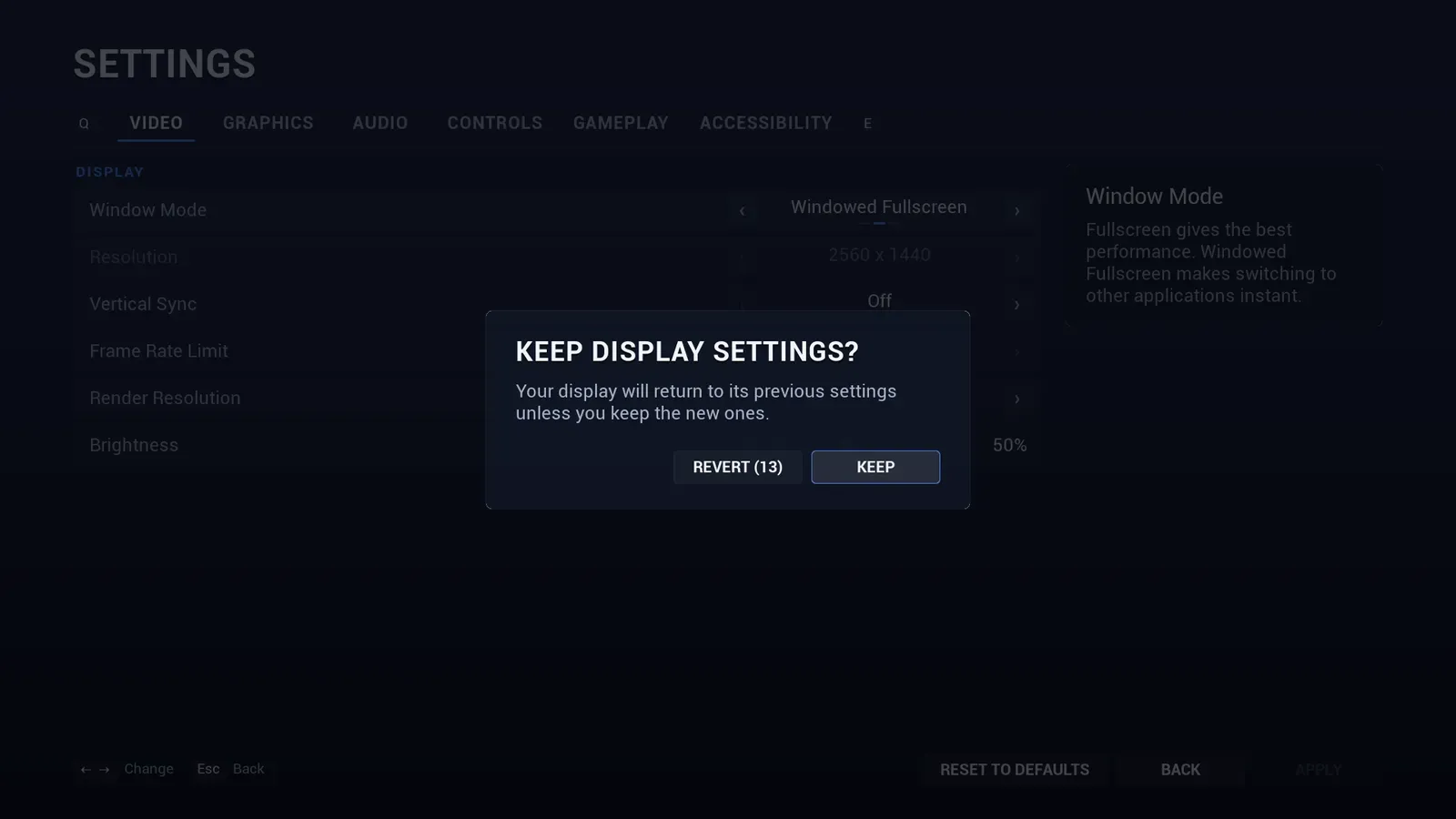
Resolution and window mode changes revert themselves if nobody confirms.
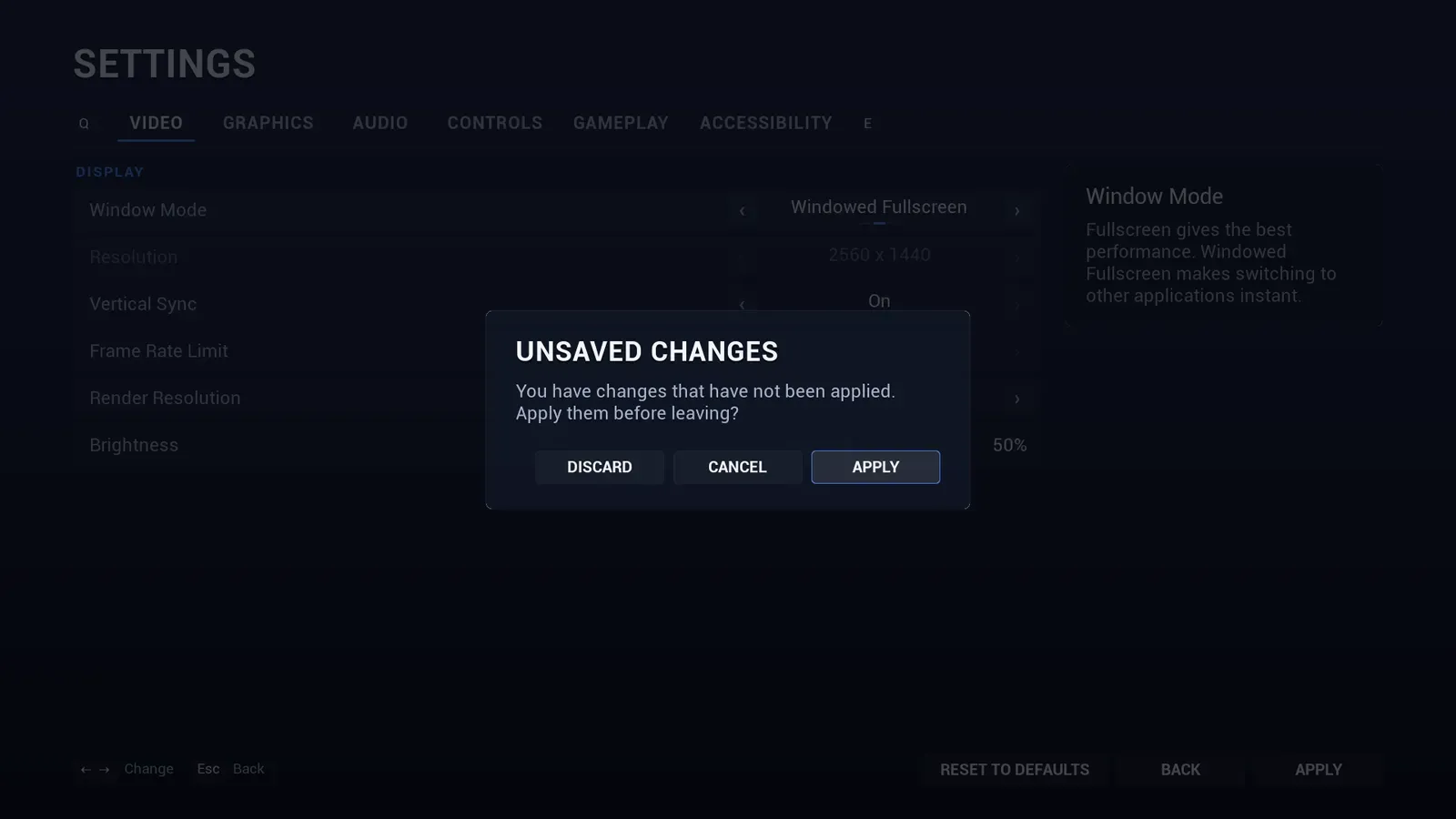
Leaving with changes waiting asks what to do with them.
Hiding settings and tabs
Section titled “Hiding settings and tabs”- Add Ids to Menu Config > Hidden Settings to remove built-in settings.
KeyBindingsandGamepadBindingshide the rebinding sections. - Untick Visible on a tab in Menu Config > Settings Tabs to hide the whole tab, or give it a Display Name to rename it.
Your own settings
Section titled “Your own settings”Add entries to Menu Config > Custom Settings: a Toggle, a list of Options or a Slider, on any tab and section. They are saved with the other settings. Read them with Get Custom Setting Value (the option index for option lists, the value for sliders, 0 or 1 for toggles) or Get Custom Setting Bool, and set them from code with Set Custom Setting Value.
Reading settings from game code
Section titled “Reading settings from game code”Get the Assetpro Settings Subsystem (Get Assetpro Settings Subsystem in Blueprint):
| Function | Returns |
|---|---|
| Get Mouse Sensitivity, Get Gamepad Sensitivity | Sensitivity multiplier |
| Is Mouse Y Inverted, Is Gamepad Y Inverted | Invert Y |
| Get Field Of View | Degrees |
| Get Camera Shake Scale | 0 to 1, multiply your camera shake scale by it |
| Get Difficulty | 0 = Easy, 1 = Normal, 2 = Hard |
| Are Subtitles Enabled | Subtitles on or off |
| Get Volume | The volume of a channel (Master, Music, Effects, Voice, Interface) |
| Get Custom Setting Value, Get Custom Setting Bool | A custom setting |
Listen to On Setting Changed (with the setting Id) or On Settings Applied to react to changes.
What the plugin applies for you
Section titled “What the plugin applies for you”- Window mode, resolution, vertical sync, frame rate limit, render resolution, scalability, anti-aliasing method, motion blur and brightness.
- Volumes, through a sound mix on the sound classes set in the Menu Config. Master volume always works.
- Mute in Background, subtitles (the engine’s subtitle switch), colour blind correction and interface scale.
- Field of View on the player’s own view, with or without a Camera Component. A camera at 90 degrees shows exactly the chosen value, zoom effects keep working, and cutscene cameras and the main menu’s own view are left alone. Turn off Menu Config > Apply Field Of View To Camera if your game applies Get Field Of View to its camera itself.
- Vibration, on every local player controller, whatever its class.
- Look sensitivity and invert Y, once you add the Assetpro Look Settings modifier to your Look action mappings, one for the mouse and one for the right stick.
Camera Shake and Difficulty are stored for your game code to read.