
Horizon quick start
Requirements
Section titled “Requirements”| Engine | Unreal Engine 5.4, 5.5, 5.6, 5.7, 5.8 |
| Platforms | Windows (Win64), Mac, Linux |
| Engine plugins | CommonUI and Enhanced Input, enabled automatically with this plugin |
| Modules | 1 runtime module, AssetproMenuSystem, full C++ source |
| Content | Six interface sounds, the translations, and a ready-to-play example (two maps, a game mode and a Menu Config). Every screen is generated in C++. |
Try the example first
Section titled “Try the example first”With the plugin enabled, a small working game is in Content/Examples. Find it through Content Browser > Settings > Show Plugin Content, then Assetpro Menu System Content > Examples.
-
Project Settings > Plugins > Assetpro Menu System > Menu Config =
DA_AMS_ExampleMenuConfig. -
Open
L_AMS_Example_MainMenuand press Play.
New Game opens L_AMS_Example_Gameplay, a grey blockout arena (fly with WASD and the mouse). Gamepad Start, or Escape in a Standalone Game, opens the pause menu, and its Main Menu entry returns to the example main menu.
Without the first step the main menu still appears, but New Game has no level to open. The example is not packaged into your game unless your project uses it, and you can delete the Examples folder once your own Menu Config is set up.
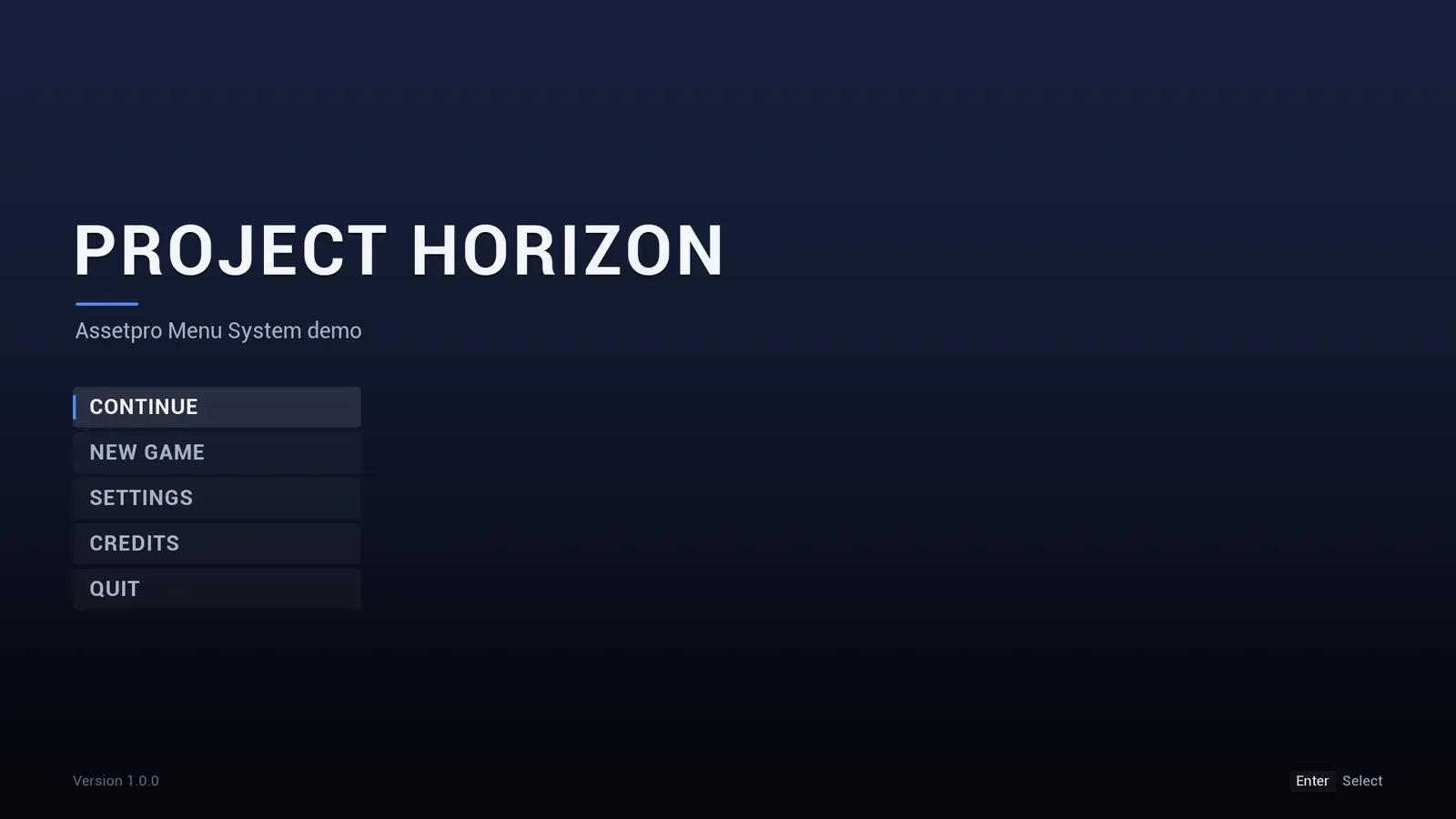
The example’s main menu. Continue is greyed out until a save exists.
Set up your own
Section titled “Set up your own”-
Enable Assetpro Menu System in Edit > Plugins and restart the editor. CommonUI and Enhanced Input are enabled with it.
-
Recommended: Project Settings > Engine > General Settings > Game Viewport Client Class =
CommonGameViewportClient. -
Main menu level: World Settings > GameMode Override =
AMSMainMenuGameMode. The player gets no pawn, and the startup menu (press start screen or main menu) appears by itself. -
Gameplay levels: use
AMSPlayerController, so Escape or gamepad Start opens the pause menu, or call Toggle Pause Menu on the Assetpro Menu Subsystem from your own pause input. -
Create a Menu Config data asset (Content Browser > Miscellaneous > Data Asset >
AMSMenuConfig). Set Main Menu Level and New Game Level, then assign the asset in Project Settings > Plugins > Assetpro Menu System. -
Optional: create a Theme data asset (
AMSTheme), pick a preset, press Apply Selected Preset, and assign it on the same Project Settings page.
Press Play in your main menu level. Everything else (entries, tabs, credits, tips, colours and fonts) is edited in those two assets: see Configuration.