
Aurum photo mode, extras and first run
Photo mode, the extras rooms and the first run pages are three parts of the plugin that the Menu Config can turn off entirely.
Photo mode
Section titled “Photo mode”Open Photo Mode, an Open Photo Mode entry, or P and the View button in the pause menu, closes the pause menu and keeps the game paused while a free camera flies about it: left stick or WASD to move, right stick or the right mouse button to look, the triggers or R and F for up and down, and Shift to hurry.
The camera stays within Photo Mode Max Distance (1500 units) of the player and out of walls (Photo Mode Collision Radius). It needs a player pawn and Menu Config > Enable Photo Mode.
| Tab | Rows |
|---|---|
| Camera | Field of View, Roll, Camera Speed, Hide Player |
| Lens | Depth of Field, Focus Distance (m), Aperture (f), Exposure |
| Look | Filter (None, Sepia, Noir, Faded, Golden Hour, Moonlit, Illuminated; made in code), Filter Strength, Vignette, Grain |
| Frame | Letterbox (Off, 2.39 : 1, 1.85 : 1, 1 : 1, 4 : 5), Border (None, Gilded, Manuscript), Game Stamp (the game’s name) |
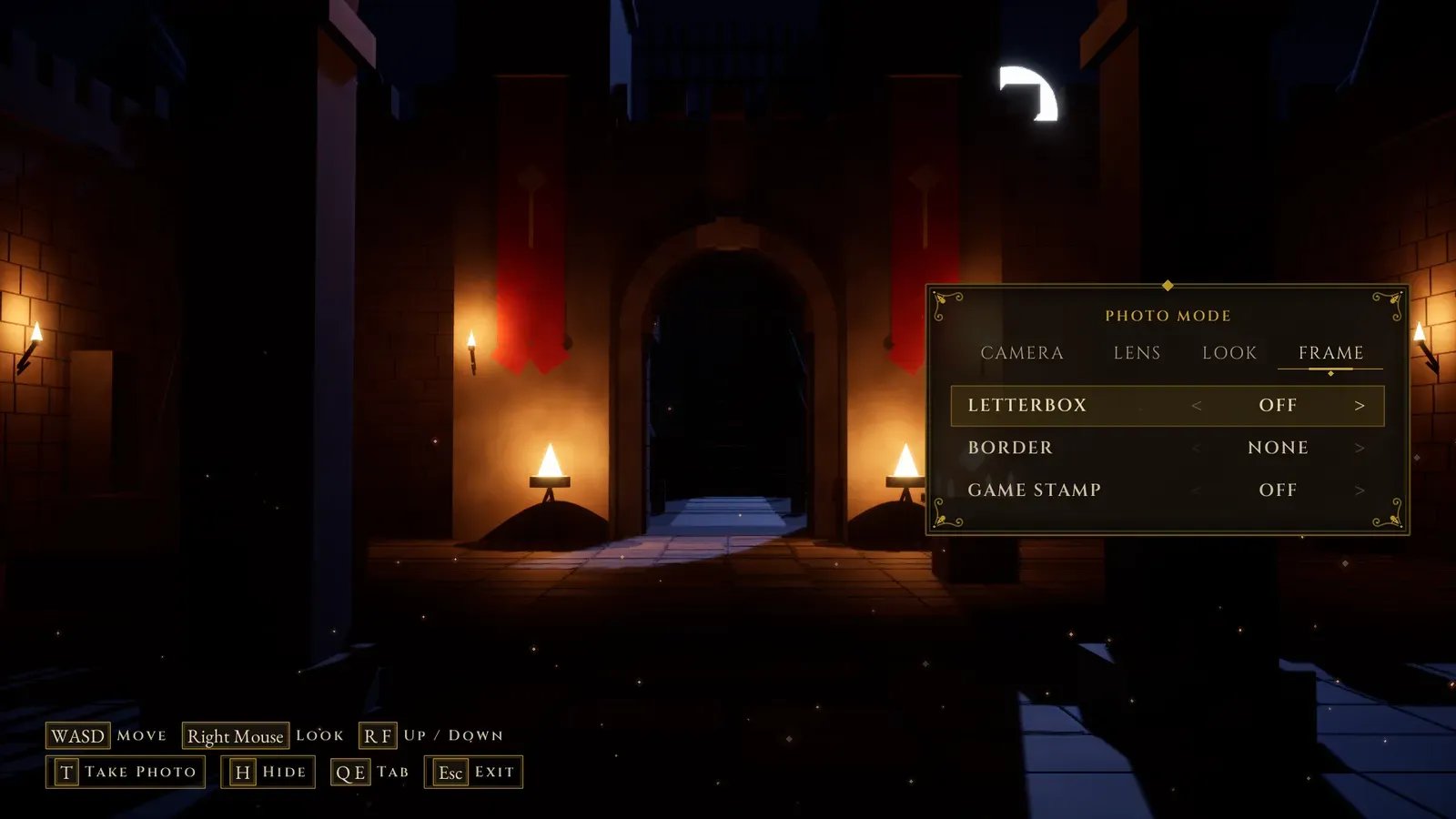
Photo mode, on the Frame tab. The hints along the bottom follow the input in use.
- Q and E, or the bumpers, change the tab. T or the top face button takes the photo, with its letterbox, border and stamp, saved to
Saved/Screenshots/<Photo Mode Folder>(the project’s name when the folder is empty). H or the left face button hides the panel. Back leaves photo mode. - Take Photo, Toggle Interface, Get Photo Settings and Set Photo Settings on the photo mode screen work from code.
Extras: gallery, music room and cinematics
Section titled “Extras: gallery, music room and cinematics”Open Extras lists the Extras Menu Entries: Gallery, Music Room and Credits. Rooms with nothing in them are greyed out, and Menu Config > Enable Extras turns them all off.
Gallery
Section titled “Gallery”AFMGalleryScreen shows the Gallery Items (Id, Title, Description, Image, Unlocked By Default) as framed pictures on a grid with a count, locked ones behind a padlock.
A picture opens full screen: previous and next with Q and E or the bumpers, zoom with the wheel or the triggers, pan by dragging or with the right stick, and its story under it (I or the top face button shows or hides it).
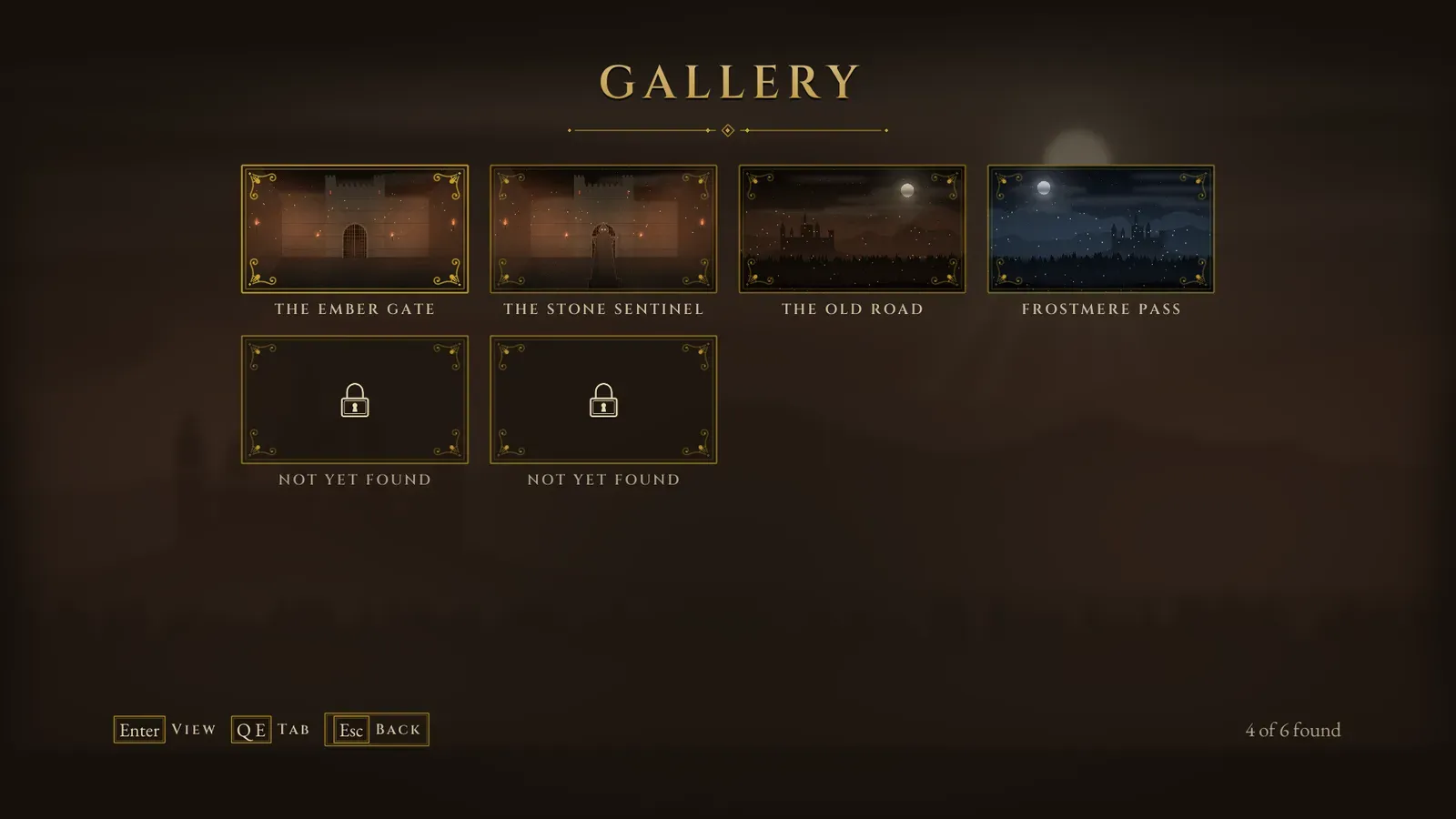
The gallery, with four of six pictures found.
Cinematics
Section titled “Cinematics”A tab of the gallery when there are Cinematics (Id, Title, Description, Thumbnail, Level, Unlocked By Default). Watch fires On Cinematic Requested with its Id, so you can play your sequence or media there. With nobody listening, the cinematic’s Level opens.
Music room
Section titled “Music room”AFMJukeboxScreen lists the Music Tracks (Id, Title, Subtitle, Sound, Unlocked By Default) with the one playing and its progress. Accept plays or pauses, Q and E or the bumpers skip, and L or the top face button loops.
Tracks play as 2D interface sounds, so they play on while the game is paused, at the Music Volume, and stop on leaving. On Jukebox Changed tells your own menu music to step aside.
Credits
Section titled “Credits”The credits scroll on parchment, with the Credits Preface at their head. They roll by themselves, and Up and Down scroll.
Unlocking extras
Section titled “Unlocking extras”Unlock Extra (Id, Notify) on the AFM Extras Subsystem unlocks a picture, a track or a cinematic, with “Added to the Gallery”, “Added to the Music Room” or “Added to the Cinematics” on the HUD.
Unlocks are kept in their own save slot (Extras Save Slot) across every game. Unlock All Extras and Reset Extras unlock or lock everything.
First run
Section titled “First run”On the very first launch (Menu Config > Show First Run) the player sets up the game, a page each, before the first menu (AFMFirstRunScreen):
- Language, when there are two or more languages.
- Content warning (Content Warning Title and Text: a photosensitivity warning by default), with a “Don’t Show Again” tick box.
- Brightness: “until the crest on the left is barely visible, and the one on the right is clear”.
- Screen Edges: the HUD Safe Zone, until the gold corners sit inside the edges of a television.
- Sound: the Audio Preset (Headphones, TV Speakers, Home Theater, Night Mode).
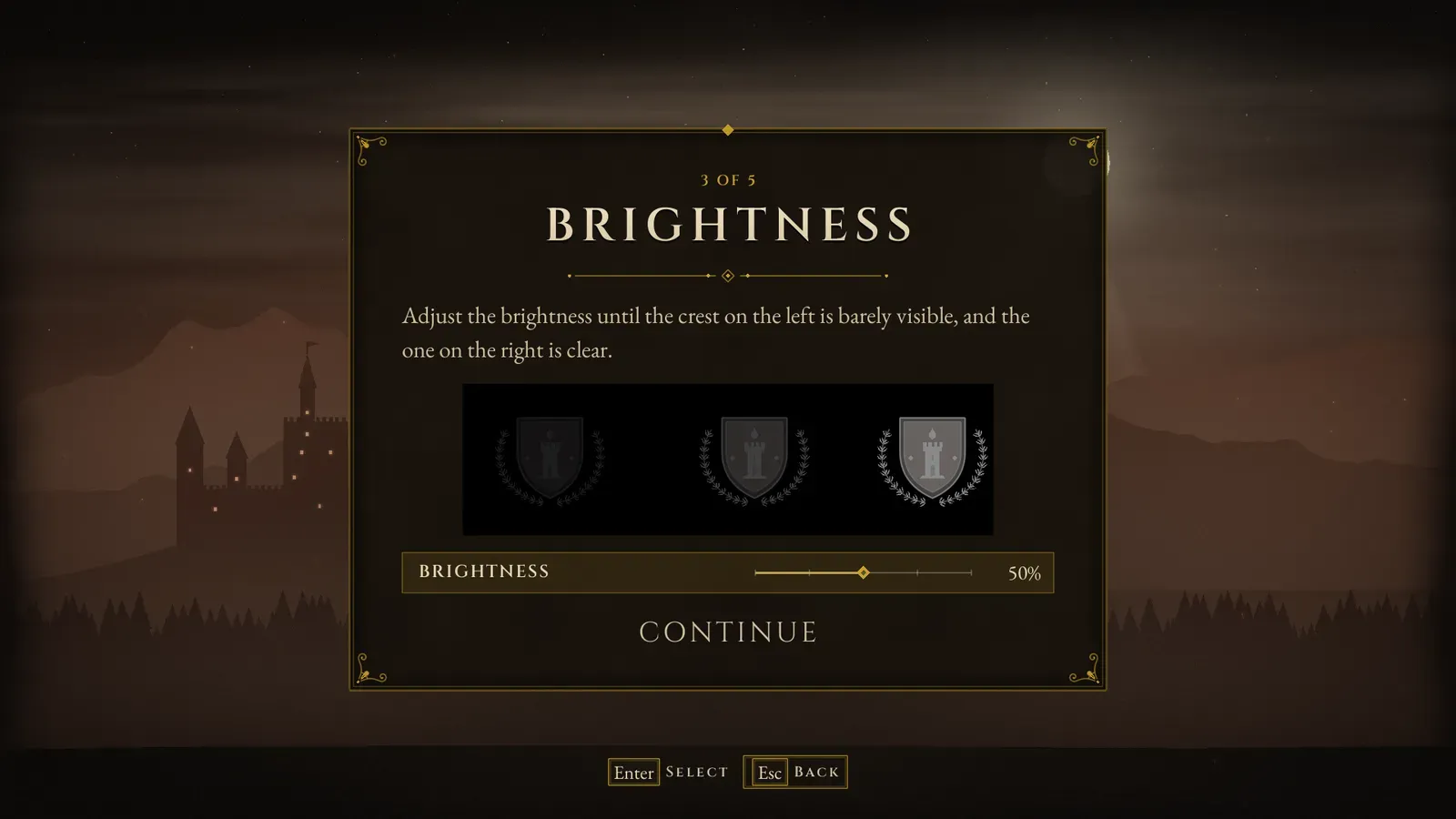
The third of the five first run pages.
- Continue, or Accept, moves on, and Back goes back a page. The startup menu follows when they are done.
- Each page’s setting is the real one, also in Settings, so it can be changed later.
- On later launches only the warning shows (Menu Config > Show Content Warning), until its “Don’t Show Again” is ticked. An empty Content Warning Text skips it.
- Reset First Run on the Assetpro Settings Subsystem shows the pages again on the next start, and Open First Run on the menu subsystem shows them now.