
Aurum save and load slots
The plugin saves and loads games for you, with a screen for each (AFMSaveSlotScreen).
The two screens
Section titled “The two screens”Load Game (main menu and pause menu): every save as a card, newest first. Each card shows a screenshot with the hero’s portrait in a gold medallion, the character’s name, a line built from the class and the level, the place, a tag (Manual 3, Autosave 2, Quicksave), how long ago it was saved, the playtime and the gold. The selected save is described on a parchment page: chapter, location, playtime, saved time, difficulty, objective, chapter progress and up to four stats of your own. Accept loads it; while a game is being played it asks first (Confirm Load In Game).
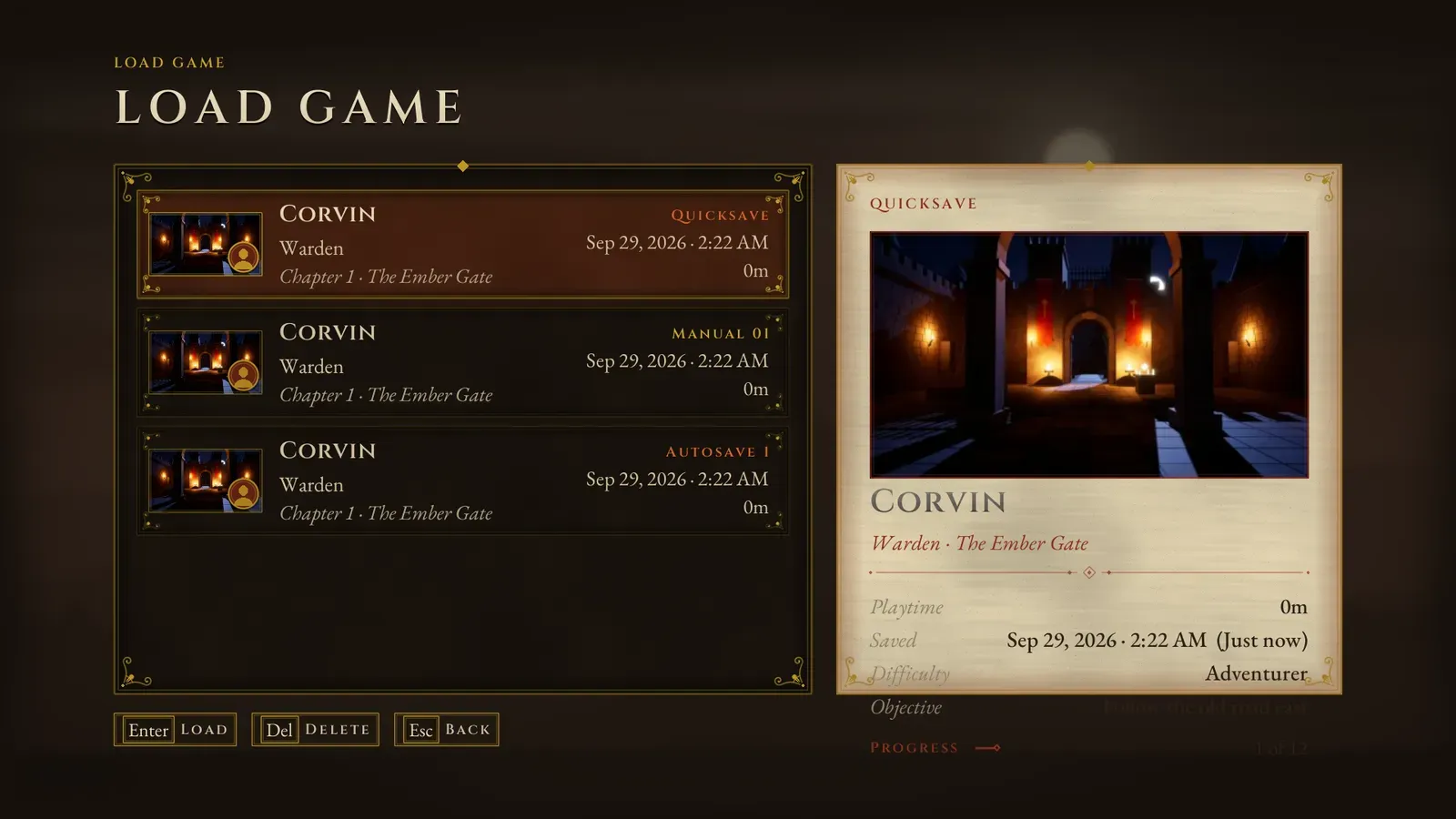
Load Game. The newest save is first, and the page on the right describes the selected one.
Save Game (pause menu): a New Save card while a manual slot is free, then the manual saves to overwrite (it asks first). Autosaves and the quick save show as read only.
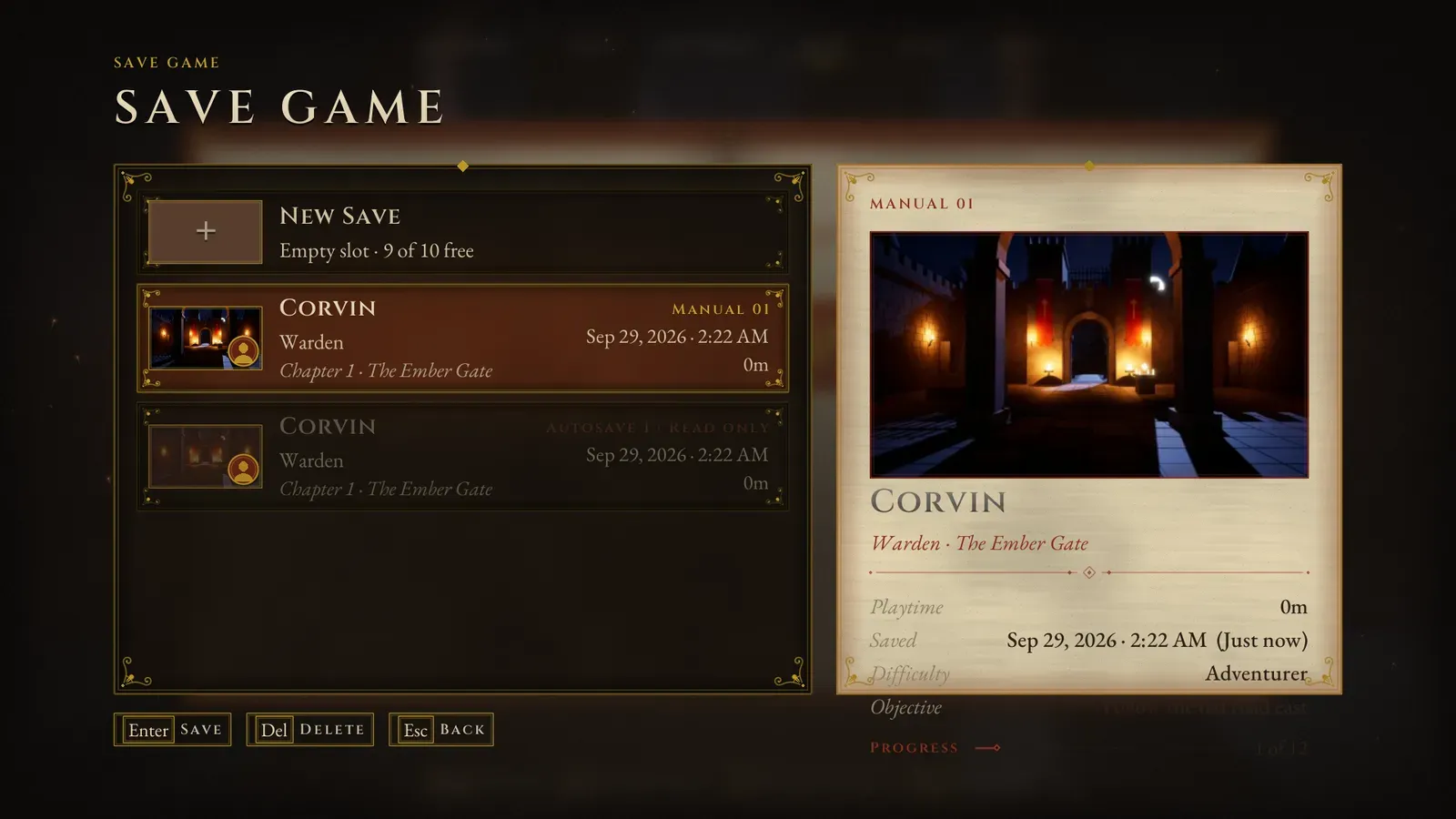
Save Game, opened from the pause menu over the paused game.
- Delete (Del, gamepad Y) deletes the focused save after asking.
- Continue loads the newest save, manual, auto or quick.
Quick saves and autosaves
Section titled “Quick saves and autosaves”- Quick Save / Quick Load: F5 / F9 on
AFMPlayerController(Menu Config Quick Save Key, Quick Load Key; empty keys turn them off), or the Quick Save / Quick Load actions and functions. A notification confirms it. - Autosaves: a Checkpoint Volume autosaves when the player reaches it (Menu Config Autosave At Checkpoints; untick Autosave on one volume to skip it), and Autosave saves from your code. Autosaves take turns through Autosave Slots.
- The saving indicator shows while a save is written (asynchronously). Each save’s screenshot is taken from the game view without the HUD or menus (for saves from the pause menu, as the pause menu opens).
What a save holds with no code
Section titled “What a save holds with no code”The level, the player’s position and view (Save Player Transform), the chapter being played, the playtime (not counting pauses and menus), the difficulty, a summary line (Set Save Summary, shown as the objective), the character profile, the codex (found and read entries), the journal quest and its objectives, and your Save Extras.
Loading opens the level, puts the player back where they were and fires On Save Loaded.
Save Extras and the cards
Section titled “Save Extras and the cards”Set Save Extra (Key, Value) stores a text with the next saves: a name, a class, a level, a place, gold, renown. Set them as they change, or in On Gather Save Data. A loaded save brings its Extras back; New Game clears them. Menu Config > Save Slots > Cards chooses what the cards show:
| Property | Default | What it shows |
|---|---|---|
| Save Card Title Key | Name | The card’s big line. Saves without it show their chapter. |
| Save Card Subtitle | Class, then Level as Level {0} |
Extras joined into the second line. Each field has a Key, a Label and a Format with {0} for the value. |
| Save Card Location Key | Location | The italic line under it. Saves without it show their chapter. |
| Save Card Currency Key | Gold | The value shown with a coin on the card’s right. |
| Save Card Portrait Key | Portrait | The Extra naming the portrait in the medallion. Character creation sets it to the body’s Id. |
| Save Portraits | empty | Pictures by the Portrait value. Without one, the body with that Id gives its Portrait; otherwise a plain bust. |
| Save Detail Stats | empty | Up to four labelled Extras shown in a row on the details page (Renown, Relics, Falls). |
Your own data
Section titled “Your own data”Make a child of AFMSaveGame (Blueprint or C++) with your variables and select it as the Menu Config’s Save Game Class. Fill it in On Gather Save Data (fires just before each save is written) and read it back in On Save Loaded.
When saving is allowed
Section titled “When saving is allowed”Set Saving Allowed (false with a reason) blocks saving during combat or a cutscene; the reason shows when the player tries to save. Saving is never allowed in the main menu level.
Menu Config
Section titled “Menu Config”| Menu Config (Save Slots) | Default | What it does |
|---|---|---|
| Enable Save Slots | On | Turn off if your game keeps its saves another way. |
| Save Game Class | AFMSaveGame | The save written to each slot: your child of AFMSaveGame. |
| Save Slot Prefix | AFM | Start of every save file’s name (AFM_Manual_01, AFM_Auto_1, AFM_Quick, AFM_SaveIndex). |
| Manual Slots | 10 | Slots the player can save to. |
| Autosave Slots | 3 | Autosaves take turns through these (the oldest is replaced); 0 turns autosaves off. |
| Autosave At Checkpoints | On | Checkpoint Volumes autosave. |
| Save Player Transform | On | Saves keep the player’s position and view; loading restores them. |
| Quick Save Key, Quick Load Key | F5, F9 | Bound by AFMPlayerController, which also frees them from the engine’s development debug keys. |
| Confirm Load In Game | On | Loading while playing asks first. |
- Saves use the engine’s save game system (user index 0). A small index file keeps each save’s card details and screenshot, so the slot screens never load the saves themselves; it rebuilds itself from the save files if it is lost.
- Chapter progress and the extras’ unlocks stay in their own slots and are not part of a save.